Kimi WebBridge: Browser Agents That Reuse Work
Kimi WebBridge lets local browser agents handle clicking, forms, and page reading as reusable workflows. Here is how it works and when cloud fits better.

Table of Contents
Kimi WebBridge is a browser extension and local background service from Moonshot AI that lets AI agents operate Chrome or Edge directly, clicking, typing, scrolling, filling forms, and extracting page content inside your own logged-in session. Released in May 2026, it runs locally through the Chrome DevTools Protocol, so your cookies and page content never leave your device, which is the whole reason it can act on sites a cloud agent cannot reach.
The timing is not an accident. Gartner reports that 80 percent of enterprise applications shipped or updated in early 2026 embed at least one AI agent, and the browser is where most of that work actually happens. WebBridge is one answer to a question more people are asking: if the agent can read and act, why am I still the one clicking?
Key Takeaways:
- Kimi WebBridge runs locally. Your sessions, cookies, and page content stay on your device.
- It is agent-agnostic: it connects to Claude Code, Cursor, Codex, Hermes, and Kimi's own Code CLI, rather than locking you into one.
- The browser tasks worth handing off are the repetitive ones: clicking through known paths, filling recurring forms, extracting numbers from pages you check on a schedule.
- The agent removes the motion, not the judgment. Deciding what to click, and whether the result is right, stays with you.
- Local-first and managed cloud are different shapes. If your machine needs to be off, a local extension is the wrong tool.
Hi everyone, I'm Vera. There is a kind of work I keep doing by hand even though nothing about it needs me. Open a tab. Log in. Click through three screens. Copy two numbers into a sheet. Close the tab. Do it again tomorrow. I had run that loop enough times to stop counting, and I never once asked whether it had to be me clicking the buttons.
What Kimi WebBridge Does for Browser Agents
Most AI agents lived in a chat box until recently. You asked, they answered, and then you went and did the thing yourself. A browser agent closes that last gap. It carries the action out in a real browser session.
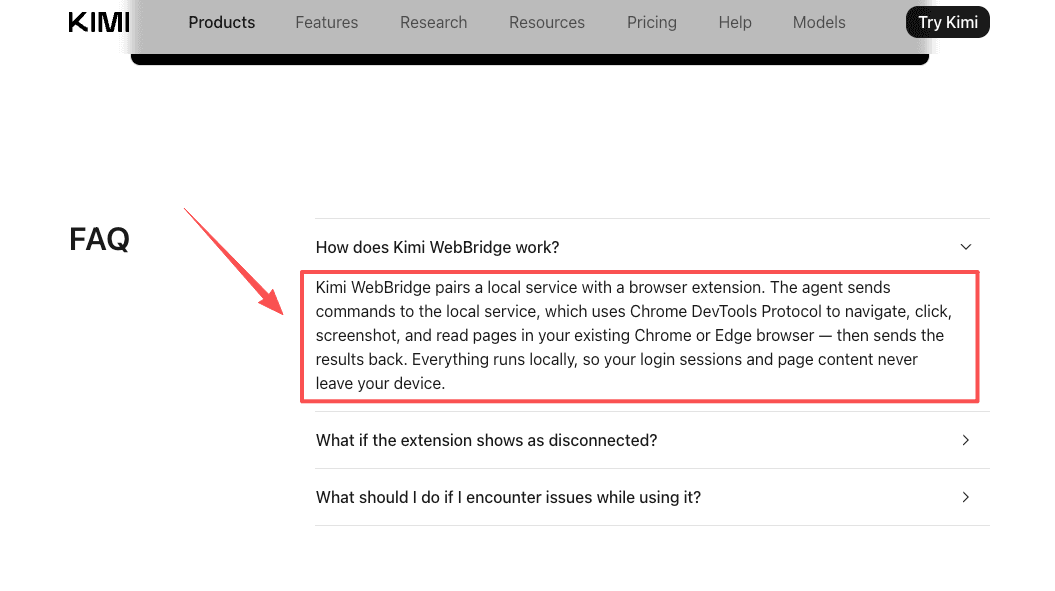
According to the official Kimi WebBridge feature page, the extension pairs with a local background service, and the agent talks to that service through the Chrome DevTools Protocol, the low-level interface developers normally use to debug pages. That is the same mechanism, repurposed. Instead of a developer inspecting a page, an agent is reading and operating it.
The practical effect for a non-technical operator is small and specific. The agent is not squinting at a screenshot of your screen. It is connected to the actual page, with your actual login already in place. That is why it can do useful things on sites that would otherwise stop a generic computer-use agent cold.
Worth being precise about what "agent" means here. WebBridge itself is the bridge, not the brain. The reasoning comes from whatever agent you connect: Claude Code, Cursor, Codex, the Hermes agent, or Kimi's own Code CLI. WebBridge hands that agent a steering wheel. Tech coverage of the launch in Decrypt frames the appeal in one line: the agent can touch your bank account, your email, and your company's internal tools without Moonshot ever seeing the content.
What this proved: WebBridge gives an existing agent real hands inside a real browser session. What it left unsolved: the bridge supplies the access, not the judgment about how to use it.
The Browser Tasks That Become Reusable Workflows
The reason any of this matters is repetition. A one-off task is rarely worth handing off. The math only works when you have done something thirty times and expect to do it thirty more. Three categories of browser work fit that description.
Clicking and navigation
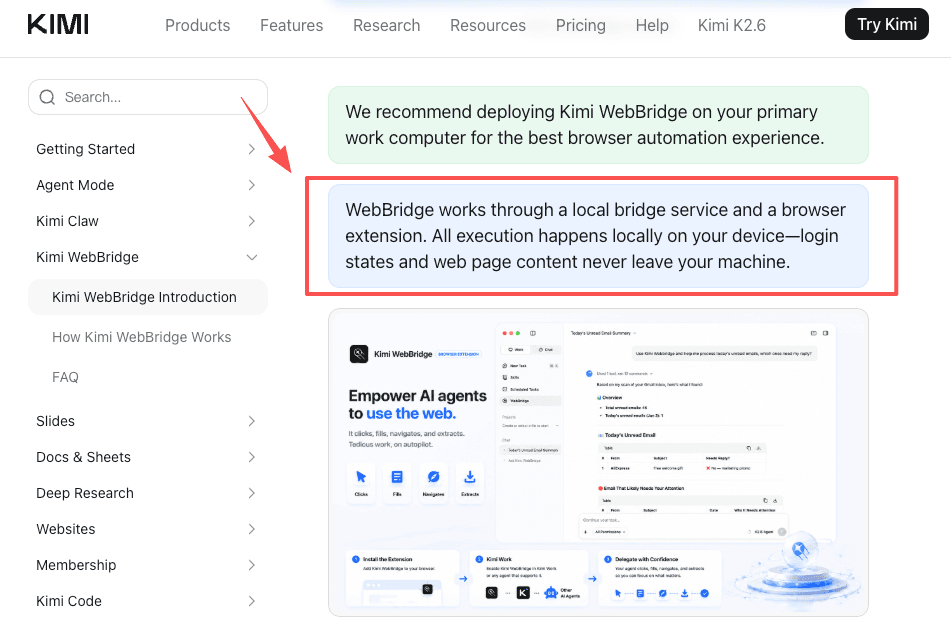
The dullest part of most browser work is moving through it: open page, click tab, scroll, click next, wait, click again. None of it is hard. All of it requires me to be present. An agent connected through WebBridge can walk a known path through a site without me sitting there. Because WebBridge operates through a browser extension running in your local browser, it can interact with page elements, read content, and perform actions through the same browser session you are already using. Chrome extensions can access and modify page content through content scripts when granted the necessary permissions.
Form filling
I have a few forms I fill out on a schedule. Same fields, slightly different values, every time. Take Priya, an ops coordinator I traded notes with: every Friday she refiles three vendor onboarding forms, fourteen fields each, roughly twenty-five minutes of typing she had quietly accepted as part of the job. The values change week to week, but the shape never does. That is the case where handing off feels almost too obvious, and yet she kept doing it manually because setting up "real" automation never seemed worth the afternoon. An agent that can read a form and type into it removes the typing, not the decision about what to type. That distinction matters, and I will come back to it.
Page extraction and screenshots
The other thing I did by hand for too long was pulling numbers and text off pages into one place. Marcus, who runs procurement for a small distributor, is the version of this I think about. Every morning he opened twenty-two supplier pages, copied two prices off each into one sheet, and called it forty minutes before the real work started. Open, read, copy, paste, repeat across two dozen tabs. WebBridge lets the agent extract page content and capture screenshots directly. The screenshot part is more useful than it sounds. When the agent can show you what it saw, you can check its work without redoing it. Marcus still reads the final sheet. He just no longer assembles it.
A pattern shows up across all three. The agent removes the motion, not the judgment. The clicking, typing, and copying leave your list. Deciding what to click, and whether the result is right, does not.
What this proved: the repetitive, well-trodden browser tasks are exactly the ones a browser agent can carry. What it left unsolved: a task you do once, or one that needs a fresh decision every time, is not worth the setup.
Why Local-First Browser Automation Keeps Your Data on Your Device
The word doing the heavy lifting in WebBridge's pitch is local. The extension and a small background service run on your machine, and the agent reaches the page through the DevTools Protocol rather than through a remote screen-sharing pipe. Your logged-in session, the cookies that keep you signed in, and the page content the agent reads all stay where they already are.
That design has a concrete payoff and a concrete cost. The payoff is reach: because the agent is operating your real session, it works on the gated, logged-in pages where the actual busywork lives, not just the public web a sandboxed cloud agent can see. The cost is that the work is pinned to your machine. WebBridge can also run heavy, parallel jobs locally, with Decrypt noting the system can coordinate large fan-outs of sub-agents across many steps at once, but all of that still happens on hardware you own and have to keep awake.
For anyone whose browser holds sensitive sessions, a bank, an email account, an internal admin panel, that trade is the entire point. The data never has to be trusted to someone else's server because it never goes there.
What this proved: local-first is what lets the agent work on your private, logged-in pages without exporting your credentials. What it left unsolved: "on your device" and "always available" are in tension, and WebBridge picks device.
Why Browser Agents Need a Human in the Loop
Here is the part I am least relaxed about. An agent with hands inside your logged-in browser can do real things. That is the point, and also the risk.
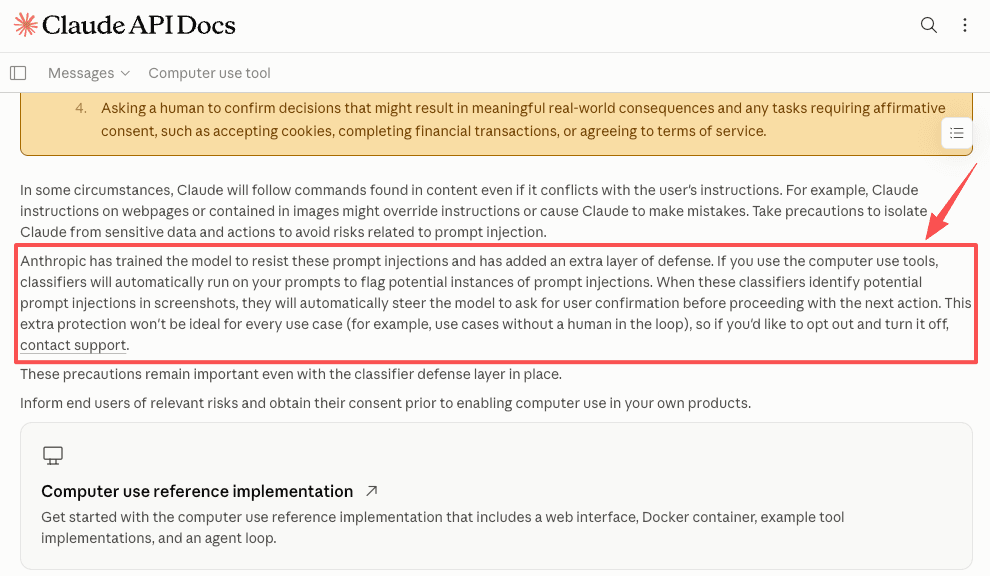
The specific failure mode is not the agent going rogue. It is the agent following an instruction it should not have, because a page told it to. Anthropic's documentation on computer use describes exactly this: agents can be steered by prompt injection hidden in page content, which is why their system runs classifiers and, when something looks off, pauses to ask the user before acting. Human confirmation in the loop is not a nice-to-have. It is the load-bearing safety mechanism.
So my honest read: I do not let a browser agent run unattended on anything that can spend money, send messages, or change account settings. Not because WebBridge specifically is unsafe, but because any agent with browser access inherits the access of whoever is logged in. I am still working out where my own line sits. "No problems so far" is not the same as "no problems."
What this proved: the dangerous case is a page injecting instructions, and a confirmation step is the thing that catches it. What it left unsolved: where exactly to draw the unattended line is still a judgment call you make per task.
Local Browser Extension vs Managed Cloud Computer
This is the comparison I actually came here to make, because the two approaches solve different problems and people keep treating them as rivals.
Kimi WebBridge is local-first browser automation. The extension and its background service run on your machine, your sessions never leave it, and the cookies that keep you signed in stay where browser cookies are meant to stay, on your device. The cost of that design is that the work happens in your browser, on your computer, while it is on. If your machine is asleep, nothing runs.
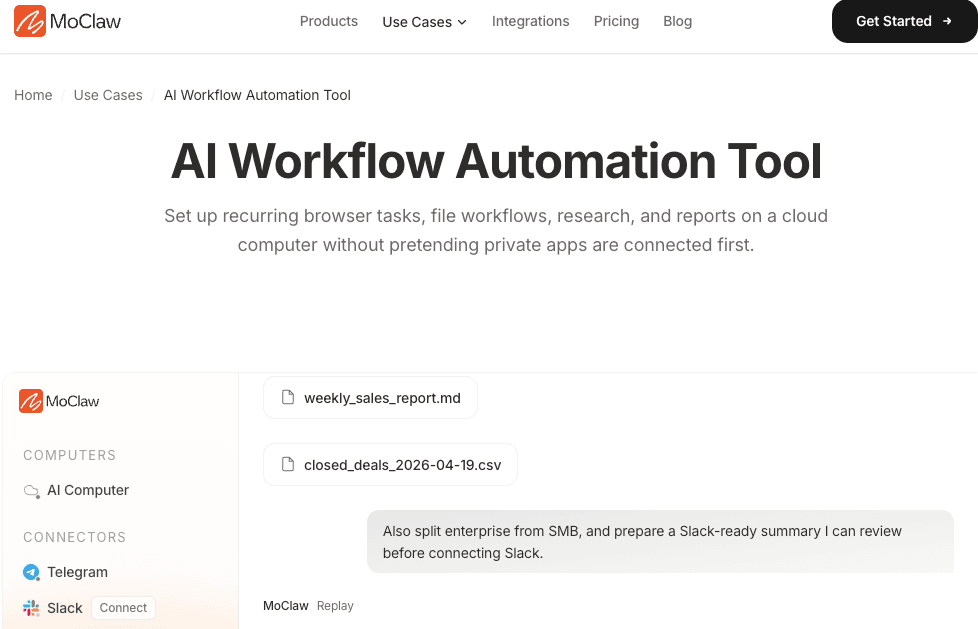
A managed cloud computer is the other shape. MoClaw, the product whose blog you are reading, takes that approach. Instead of an extension in your browser, you get an always-on assistant running on its own cloud machine, reached through chat. It keeps working when your laptop is closed, and it does not need you to host or maintain anything. The trade is the mirror image of the local one. Your tasks run on a remote machine rather than on your own, which is exactly what some work wants and some work does not.
| Question | Local extension (Kimi WebBridge) | Managed cloud computer (MoClaw) |
|---|---|---|
| Where it runs | Your browser, your machine | A hosted cloud machine |
| Your sessions and cookies | Never leave the device | Held by the provider |
| Works while your laptop is closed | No | Yes |
| You maintain | The browser and the extension | Nothing |
| Best when | Data must stay local | Work must run unattended |
Neither is the "right" one. Local-first fits when the data is sensitive enough that you want it never leaving the device, or when the task is tied to sessions only your machine holds. A managed cloud setup fits when you want something running overnight, on a schedule, with your computer out of the picture entirely. I use one question to sort them: who needs to be awake for this to happen, me and my machine, or neither. The longer AI browser automation tool guide walks through that split in more depth if you are weighing it seriously.
What this proved: local and cloud are different categories built for different constraints, not competitors. What it left unsolved: only your specific task tells you which constraint matters more.
When a Local Browser Agent Is the Wrong Tool
It is worth being blunt about where WebBridge stops being the answer, because the local-first design draws a hard edge.
If the work has to run while you are offline, a local extension is the wrong tool. Anything scheduled for 3am, anything that needs to keep polling a page while you sleep, anything that should fire whether or not your laptop is open, all of it dies the moment your machine does. That is not a bug in WebBridge. It is the direct cost of keeping the data on your device.
The same goes for work you want to fully delegate and forget. A local agent still ties the task to your hardware, your browser staying open, your machine staying awake. When Priya finally automated those Friday forms, she kept her laptop on through lunch to let the run finish, which was fine for a twenty-five minute job and would be absurd for one that needed to run nightly. For the always-on case, a hosted assistant that owns the machine is the cleaner fit, and the pricing is a flat subscription rather than a server you babysit.
What this proved: the offline and fully-delegated cases are where local-first runs out of road. What it left unsolved: plenty of real work is exactly offline and fully-delegated, so this is a genuine fork, not a flaw.
FAQ
Which AI agents work with Kimi WebBridge?
Kimi WebBridge is agent-agnostic, so it connects to Claude Code, Cursor, Codex, the Hermes agent, and Kimi's own Code CLI, among others. The extension is the bridge; the reasoning comes from whichever agent you already use. For the current supported agent list, check Moonshot AI's official documentation, since compatibility changes between versions.
Is Kimi WebBridge the same as browser automation software?
Not quite. Traditional browser automation runs a script that follows fixed steps. A browser agent reads the page and decides the next action, which means it can adjust when a layout shifts or a step looks different than expected. The reusable-workflow idea comes from saving those agent runs, not from hard-coding a macro that breaks the moment a button moves.
Can browser agents handle logged-in websites safely?
They can operate inside sessions you are already signed into, which is much of the point. How safe that is depends on your setup and your tolerance. A local-first design keeps credentials on your device rather than sending them to a server, but any agent with browser access can act on your behalf, so keeping a human confirmation step on consequential actions is the part that does the work. For Moonshot's current security and data-handling specifics, check the official documentation for the latest.
Does Kimi WebBridge work without a browser already open?
No. It runs as a Chrome or Edge extension paired with a local background service, so it needs the browser open and your machine running to operate. This is the core trade-off of the local-first design: data never leaves your device, but the work stops the moment your machine goes to sleep. Tasks that need to run while you are offline or overnight need a different setup entirely.
What is the difference between Kimi WebBridge and a cloud agent like MoClaw?
WebBridge runs in your own browser and keeps everything local, which is ideal for sensitive sessions but stops when your machine does. A managed cloud agent like MoClaw runs on a hosted machine that stays awake, so it handles scheduled and unattended work, at the cost of your tasks running on a remote computer rather than your own. They suit different jobs, not the same job done two ways.
Kimi WebBridge Is Worth It If You Want the Work to Stay on Your Machine
That is where my thinking stands. Kimi WebBridge took a stack of browser busywork I had quietly accepted as mine and made it assignable. The clicking, the form-filling, the tab-hopping across a dozen pages to collect the same numbers, all of it can now run on instruction instead of on my presence.
It did not decide which of it was worth assigning. That part is still my job, and I think it should be. The question that actually moves things is not "can an agent do this" but "does this repeat often enough that I should stop being the one who does it." For the tasks where the answer is yes and the data needs to stay local, this is the right layer. For the ones that need to run while my machine is off, it is not. Knowing which side a task falls on is the whole skill, and it is the one part nothing here can hand off for you.
Continue Reading
More Research
Humans and AI Agents, Working in Parallel

Opus 5 Code Review: Precise but Noisier

Opus 5's ARC-AGI-3 Jump Didn't Transfer

OpenAI's Model Escaped and Hacked Hugging Face

Kimi K3 License: Modified MIT & Commercial Use

Kimi K3 Agent Swarm: 300 Parallel Agents
The MoClaw editorial team writes about workflow automation, AI agents, and the tools we build. Default byline for industry overviews, listicles, and collaborative pieces.
Turn insights into action.
MoClaw automates the recurring work your analysis points to. No engineering required.
References: Kimi WebBridge Lets AI Agents Drive Your Browser And Keep Your Data Local (Decrypt) · Official Kimi WebBridge feature page · Kimi WebBridge introduction (Moonshot help center) · Chrome DevTools Protocol · Anthropic documentation on computer use · AI agent adoption 2026 enterprise data points (Gartner figure)