Canva Bulk Create: Reliable Production System
Canva Bulk Create turns one approved template into a controlled batch. Clean the data, bound the template, and hold the rows that would break brand consistency.
Table of Contents
Canva Bulk Create turns a proven design into controlled variations. It links spreadsheet fields to design placeholders for repeatable product cards, sale graphics, and localized posts. That makes it useful for Canva batch design and bulk content creation, but it does not decide whether copy, imagery, or offers are ready.
Key Takeaways:
- Treat each row as one accountable creative record, with a unique ID and a destination file name before you import it.
- Build for the longest headline and the least cooperative product image, not the neatest first row.
- Preview the awkward rows before generating a batch. Auto-matching can still connect a field to the wrong element.
- Keep approved copy, template version, reviewer, and export location together so the next update is traceable.
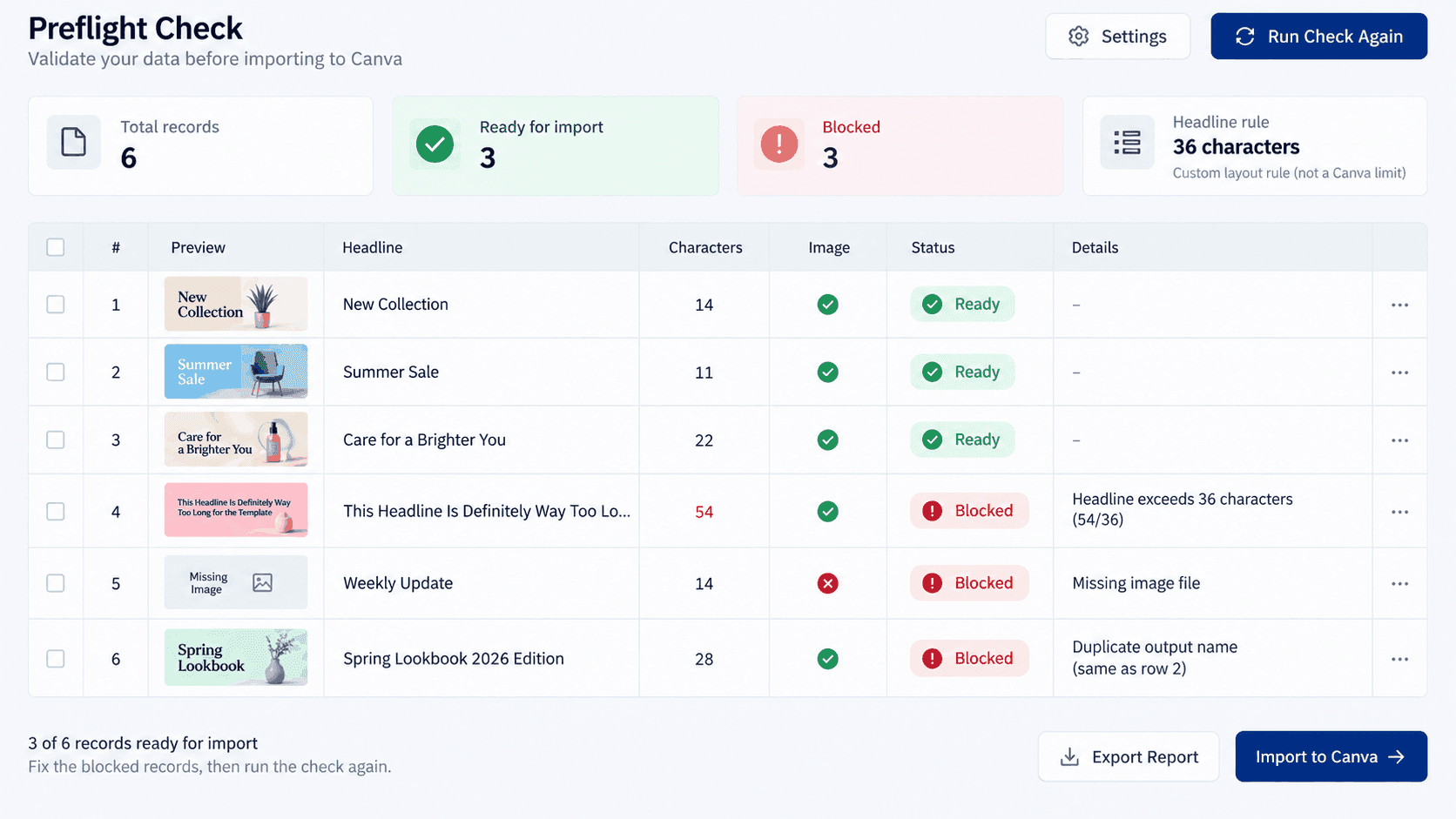
Disclosure: This guide is produced by Zentor. I am Vera, a Zentor staff writer. On September 15, 2026, I ran a local preflight check on six synthetic product-card rows. Three cleared the chosen rules; three were held for a missing image, an overlong headline, or a duplicate output name. This was a CSV validation exercise, not a Canva-account test, and it did not test Zentor controlling Canva.
The first bad row looked harmless: it had a price, name, and SKU, but no image. In a batch, that is the kind of empty space you find after exporting forty files.
What Canva Bulk Create Is Best For
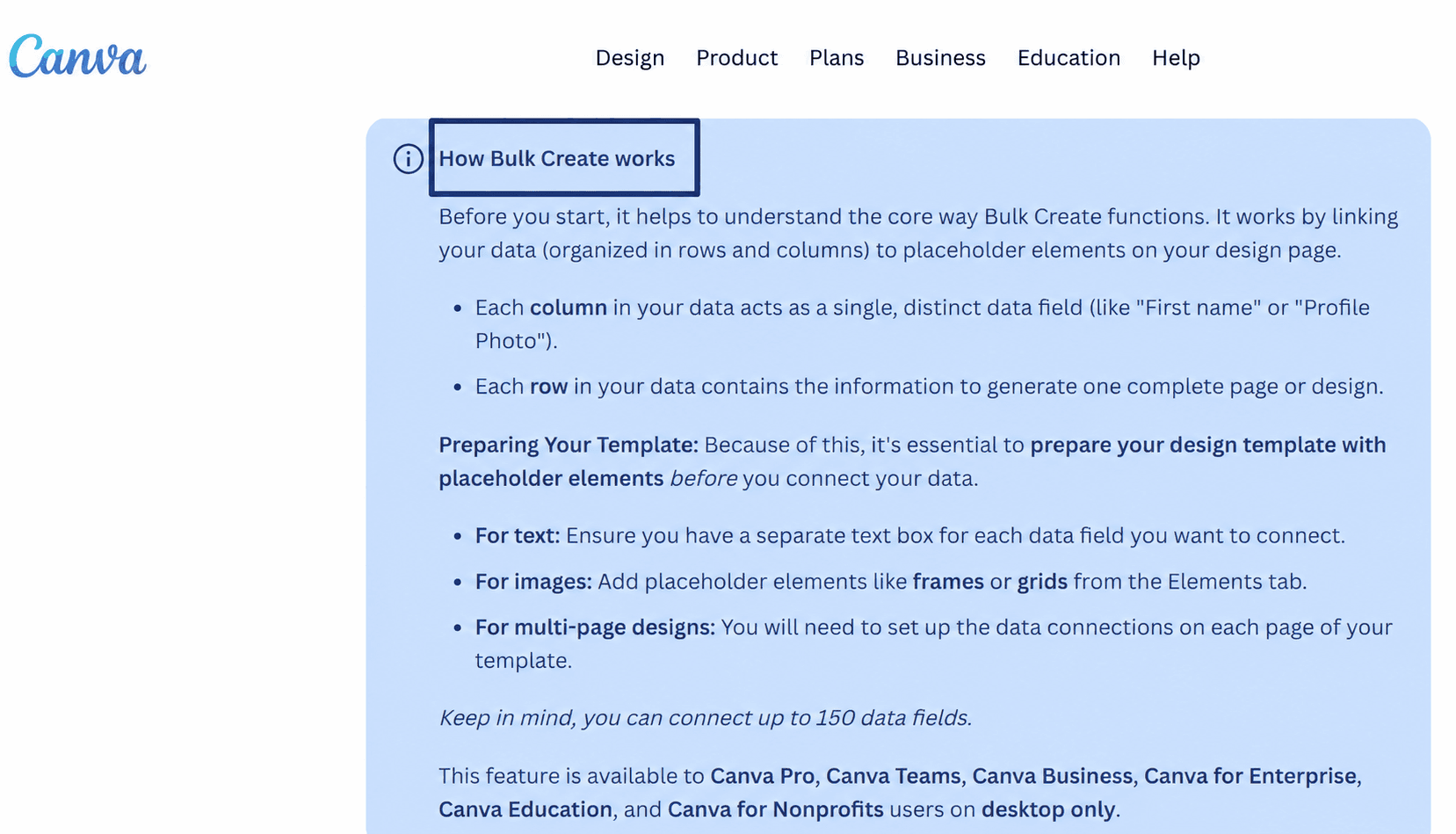
Use it when the layout is settled and the values vary: product cards, invitations, simple offer graphics, or localized posts with similar copy length. Canva’s Bulk Create guide describes the same model: rows and columns connect to text and image placeholders, with one row becoming one page or design.
Avoid untested concepts, irregular long-form copy, or images that need art direction one by one. The useful question is what may vary without breaking the design.
Prepare Clean Data Before Importing
For Canva data import, give every record a stable key and give every changing design element its own column. A small seller might use the following non-sensitive fields:
| Field | Example | Rule before import |
|---|---|---|
| sku | MUG-101 | Unique and never reused |
| headline | Autumn Stoneware Mug | Fits the template’s tested length |
| price | $18.00 | Includes the approved currency format |
| image_cell | embedded product image | Present in every required row |
| locale | en-US | Matches approved copy and date rules |
| output_name | autumn-mug-mug-101.png | Unique, readable, and final |
Export a Google Sheet to CSV or XLSX before importing. Canva’s documented route asks Sheets users to download one of those formats. In Canva Sheets, the selected range is limited to 300 rows and 150 columns. Test a small range first.
In my six-row preflight, the selected template policy was a 36-character headline maximum. That number is my layout rule, not a Canva limit. Three records were ready; three stopped before import. It cannot tell you how Canva will crop or render anything, but it catches the errors that should never enter review.
Preserve approved claims, audience, and field owner with the data. Zentor’s Content Brief Generator use case is an input-discipline example, not a claim of a direct Canva connection.
Build a Template That Survives Variation
Template automation needs boundaries. Give the headline a defined box, keep price and legal copy separate, and leave room for a two-line title. Use frames or grids for image fields. Multi-page templates need connections on every page.
Lock the logo, background, disclaimer, and campaign badge. Canva’s brand-management tools support centralized assets, templates, locked elements, and approvals. They reduce layout drift; they do not prove every row is correct.
Define an acceptable product image before mapping: crop, visible label, product scale, and packaging revision. That is brand consistency as an operating rule.
Generate and Review the Batch
Connect ambiguous fields manually. Canva offers AI auto-matching, but notes it can misinterpret field names or element types. Preview each design before generation, then inspect the longest title, shortest price, and least forgiving image.
Choose one multi-page design or individual files intentionally. Canva can name pages or files from a data column and save generated designs to Projects. Use output_name only after a duplicate check.
Text Overflow and Missing Fields
Set a hold rule for blank required fields and copy that exceeds tested space. Do not shrink every headline until it technically fits. Return the row with its SKU, source value, template version, and required fix. Keep “needs decision” separate for a valid row with a questionable offer.
Images, Crops, and Brand Rules
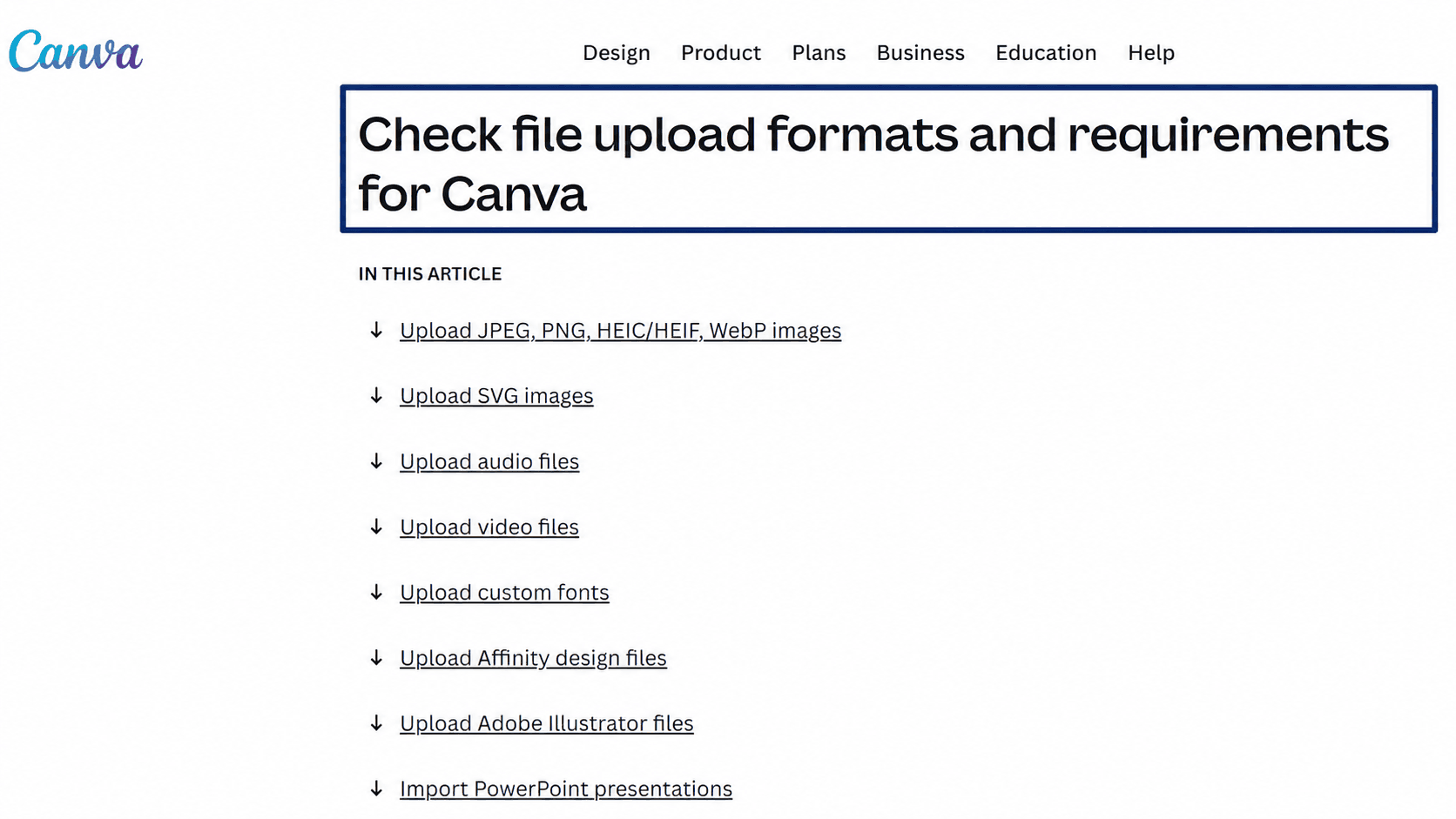
Do not rely on a cloud-photo URL in a CSV to populate an image. Canva supports images in Canva Sheets and XLSX when embedded directly in one cell; cloud-storage image URLs become plain text. Check its upload requirements for media entering Canva.
Review a crop from each product shape. A tall bottle and a wide bundle fail differently. For changing campaign data, use an explicit review boundary, as in Zentor’s guide to reviewing fast-changing workflow data, rather than trusting “completed.”
Export, Name, and Route the Files
Export is another quality gate. Canva’s file-type guidance distinguishes JPG, PNG, and PDF uses. Check the intended channel before producing a campaign library.
Record template_version, source_file_version, reviewer, export format, timestamp, and destination. Canva can bulk-download up to 200 designs, or 25 MP4/GIF designs, as a flattened ZIP. Keep the input sheet and approval record beside it.
Add a Repeatable Review Checklist
Use a short checklist that a colleague can run without reconstructing your intent:
- Every required field is populated, and every
output_nameis unique. - Template version, campaign dates, price format, and locale agree with the approved brief.
- The longest copy, widest product, and a non-default crop pass visual inspection.
- Logo, legal text, CTA, and offer are intact; reviewer and destination are recorded.
- A failed row is isolated, corrected, and regenerated as an exception rather than silently edited in the export folder.
If research or product facts feed the sheet, retain the source cutoff and owner. Zentor’s content-research workflow perspective illustrates that handoff principle, not direct Canva operation.
FAQ
Which Canva plans currently include Bulk Create?
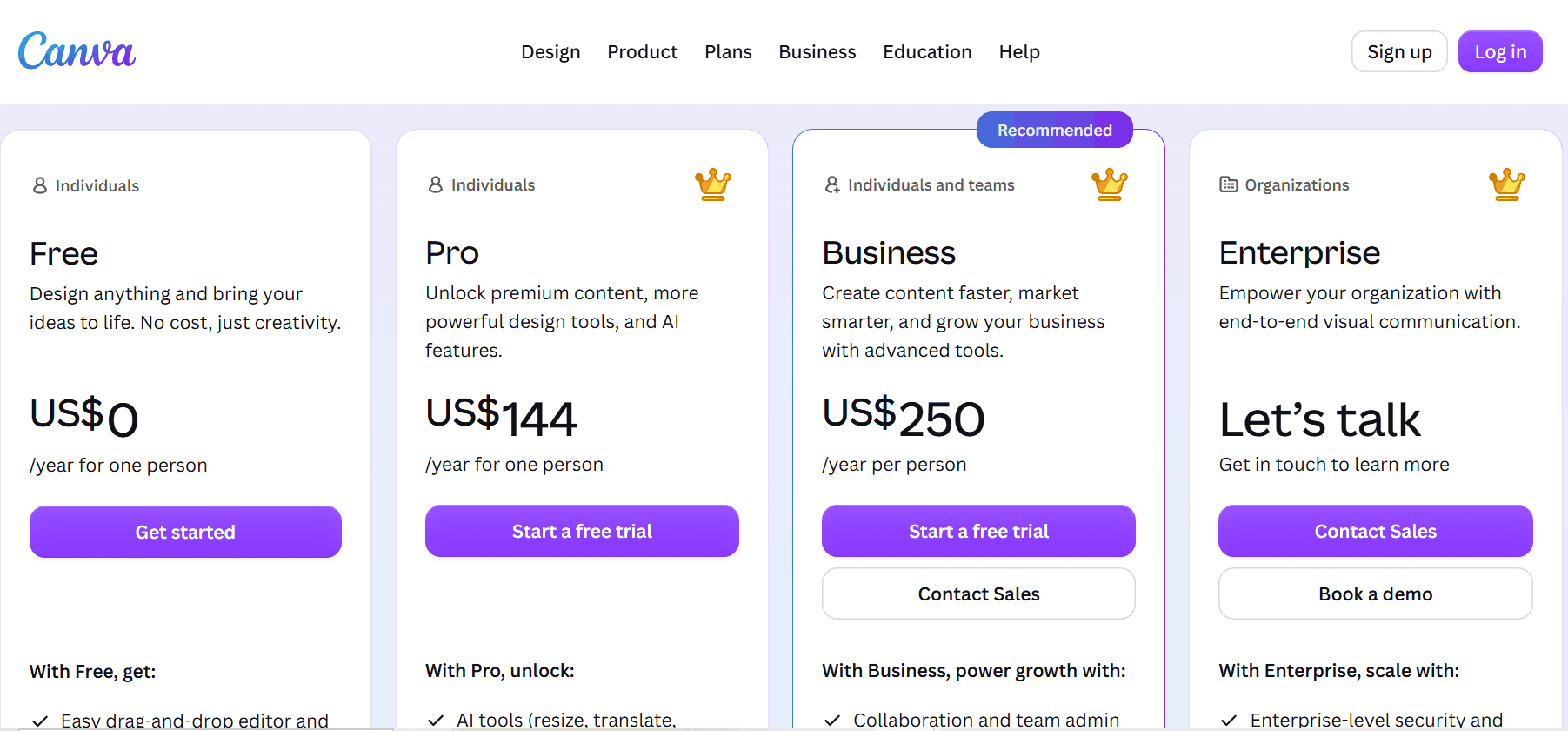
As checked on September 15, 2026, Canva lists Bulk Create for Pro, Teams, Business, Enterprise, Education, and Nonprofits users on desktop only. Its public comparison marks bulk design creation unavailable on Free and included on Pro, Business, and Enterprise. Confirm your current plan comparison at canva.com/pricing before promising a workflow.
How should teams manage localization in a batch?
Treat each locale as a separate approved record, not merely a headline swap. Carry locale, CTA, currency, date format, legal copy, image restrictions, and reviewer with the row. Test the longest-language version first.
What is the safest way to update a template mid-campaign?
Freeze the live template and copy it to a new version. Record the change, test representative rows, then regenerate from the copy. Canva’s preview is review-only, so return to the connection or template step for corrections. Do not overwrite approved exports.
Can a failed row be regenerated without rerunning everything?
Yes. Isolate it in a one-row or small exception CSV/XLSX, use the same approved template version, and give it a non-conflicting output name. The review trail then distinguishes the replacement from the original batch.
Does Canva Bulk Create support data from Google Sheets directly?
Not as a live Google Sheets connection in the documented upload flow. Canva instructs Sheets users to download CSV or XLSX, then upload it. You can also initiate Bulk Create from a Canva Sheet. Treat the export as versioned input; later Sheet edits do not change a generated batch.
Make Canva Bulk Create a Controlled Production System
The reliable version is deliberately less magical: clean rows enter a bounded template, exceptions stop for a person, and the approved output traces back to data and version. Then batch production can ship more assets without turning brand consistency into a scavenger hunt.
Continue Reading
More Guide
Manus AI Pricing: What 4,000 Credits Buys
8 Ways to Cut Your AI Agent Bill
OpenAI Models in Cursor: What Happens Nov 12
Content Creation Workflow: Brief to Publish
Rune IDE: Keyboard-Driven and Agent-Optional
Browser Use Life Recorder: A Local Audio Diary
The Zentor editorial team writes about workflow automation, AI agents, and the tools we build. Default byline for industry overviews, listicles, and collaborative pieces.
Ready to put this into practice?
MoClaw runs browser tasks, research, and schedules automatically. Try it free.
References: https://www.canva.com/help/bulk-create/ · https://www.canva.com/solutions/brand-management-tools/ · https://www.canva.com/help/upload-formats-requirements/ · https://www.canva.com/help/download-file-types/ · https://www.canva.com/help/download-or-purchase/