Grok Office Add-ins for Excel & Word

Grok office add-ins put Grok inside Excel, Word, and PowerPoint. Setup checks, per-app workflows, review rules, and what to verify before team rollout.
Table of Contents
Grok office add-ins put Grok beside the live Excel, Word, or PowerPoint file so you can draft, analyze, and revise without copying content into a separate chat. The Microsoft Marketplace listing for Grok for Microsoft 365 frames that access around paid Grok plans, and the Word listing states availability for SuperGrok, Heavy, Business, and Enterprise with usage limits.
That is useful. It is also a different question from "should I use a plugin or an agent to build a deck," which we cover separately in our Grok PowerPoint plugin guide. This article is the rollout playbook: setup checks, per-app review rules, and what breaks if nobody owns the final file.
Key Takeaways:
- Grok office add-ins work inside Microsoft 365 for Excel, Word, PowerPoint, and Outlook; this guide focuses on the three file apps
- Marketplace copy treats the add-in as free to install, while real use still depends on paid Grok access, tenant policy, and usage limits
- Treat every output as an editable draft: the add-in can read and change the open file, and it can send data over the internet
- Excel risk is formula truth; Word risk is commitment language; PowerPoint risk is silent number drift
- EU and regional teams should verify Marketplace availability, tenant policy, and account behavior in the exact country profile before rollout
A practical preflight before any live board file: one 5-slide QBR outline, one 12-row revenue table, and one 2,000-word launch memo. You are not testing whether Grok sounds polished. You are testing whether it changes the right slides, cites the right cells, preserves a recoverable original, and leaves a reviewer able to undo the work.
What a Grok Office Add-in Actually Changes
Grok runs inside PowerPoint, Excel, Word, and Outlook as Microsoft 365 add-ins. For this article, the core focus is Excel, Word, and PowerPoint.
The public Microsoft listing describes Grok for Microsoft 365 as an AI agent for Excel, Word, and PowerPoint, with the ability to work in the active Office file. That same listing notes two capability signals teams should not skip: the app can read and make changes to the document, and it can send data over the Internet.
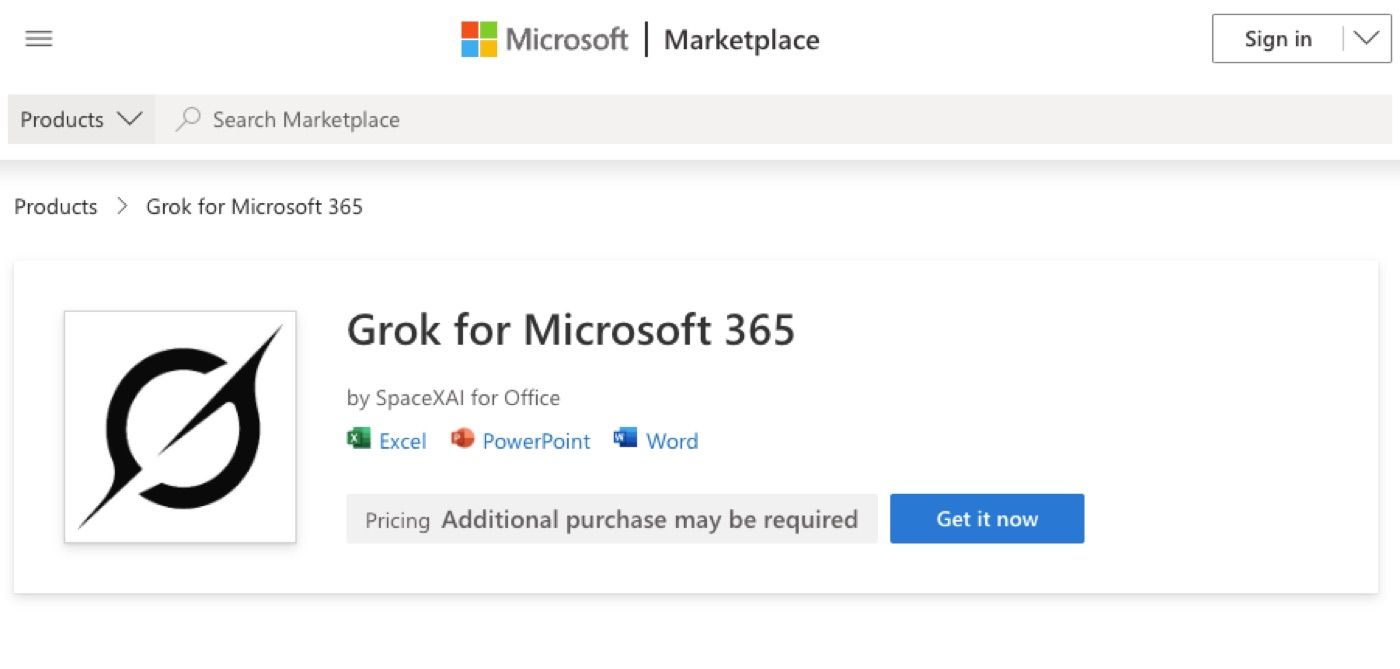
These are not detached writing suggestions. The add-in can operate beside real Office files. That makes it useful for local file work, and it raises review, sharing, and version-control questions that chat-only tools never force.
xAI's own use-case hub describes Grok as working inside Word, Excel, PowerPoint, and Outlook as Microsoft 365 add-ins, with Word for document consistency, Excel for formulas and scenarios, and PowerPoint for outlines and slide narratives. Use the add-ins for local file work; keep final approval outside the model.
What this resolved: a Grok office add-in is file-adjacent, not chat-adjacent. What it left unsolved: account status, tenant policy, and region still gate whether your team can install and use it.
Setup Checks Before Any Team Rollout
Before rollout, check five things: Microsoft 365 add-in access, paid Grok account status, tenant admin policy, file sensitivity, and region behavior.
Marketplace materials currently tie use to paid Grok plans. Product pages also describe the add-ins as free to add from Microsoft Marketplace, but "free to add" is not the same as unlimited use. Usage limits, paid account status, Microsoft tenant controls, and regional access can still block a clean rollout.
For grok office add-in EU workflows, do not assume EU access from a general launch claim alone. Test in the exact Microsoft tenant and country profile where the team works:
| Check | What to verify |
|---|---|
| Account | SuperGrok, Heavy, Business, or Enterprise access |
| Microsoft tenant | Add-ins allowed by admin |
| App surface | Desktop, web, and platform behavior |
| File class | Public, internal, confidential, client-sensitive |
| Review path | Who approves edits before sharing |
If you applied that checklist to a finance workbook and a client proposal on day one, the account check often passes while the file-class check fails. A casual internal note and a signed client memo are not the same risk class, even when both open in Word.
What this resolved: setup readiness at the account and tenant level. What it left unsolved: a green account check does not prove the add-in is safe for every file class.
Excel Workflows That Stay Inspectable
Grok Excel workflows should stay focused on inspectable spreadsheet work: explaining selected ranges, writing formulas, adding charts, sorting data, and running scenarios.
xAI frames Grok for Excel around plain-English questions, formulas, and scenarios, with the add-in working beside the workbook rather than through exports. That helps operations and finance teams, but Excel risk is different from writing risk. A polished explanation does not prove a formula is correct.
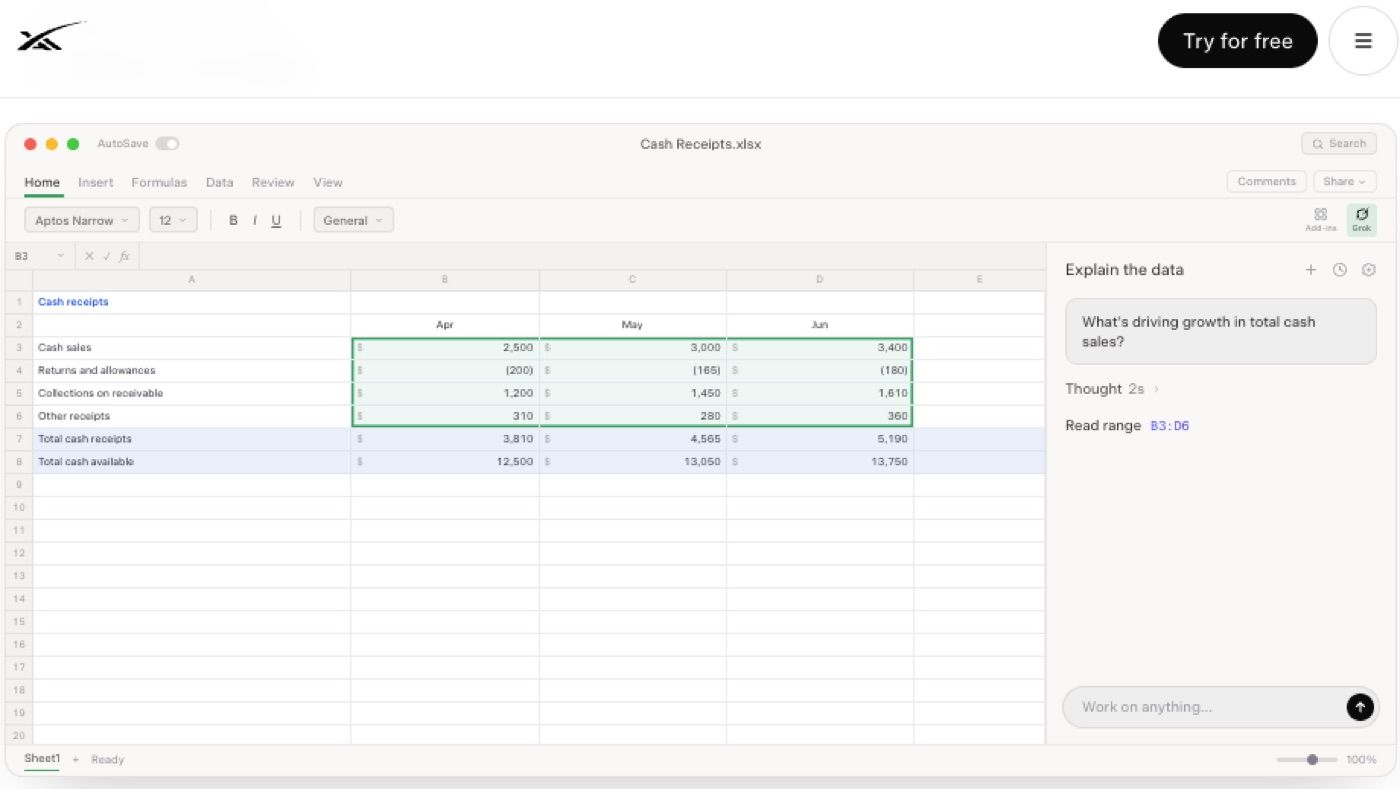
A safe Excel workflow looks like this:
| Workflow | Use Grok for | Human review |
|---|---|---|
| Sales table cleanup | normalize labels, add formulas | formula references and totals |
| Forecast scenario | create downside case | assumptions and changed cells |
| KPI review | explain movement | source rows and missing data |
| Chart draft | insert visual summary | axis, labels, and interpretation |
If Grok adds a three-month average on a 12-row revenue table, inspect the formula range, not just the output number. If it runs a downside scenario, ask which cells changed and whether the original assumptions remain recoverable. The review that matters is "which cells moved," not "does the narrative sound right."
What this resolved: a Grok excel add-in can cut formula and scenario setup friction. What it left unsolved: protected sheets, intended row references, and sensitive workbook policy still need human verification.
Word Workflows That Preserve Review
Grok Word workflows are strongest for draft structure, rewriting, consistency checks, heading cleanup, and document-wide language alignment.
xAI presents Grok for Word around rough notes, editable revisions, and consistent long documents. That fits launch plans, internal guides, proposals, summaries, and policy drafts.
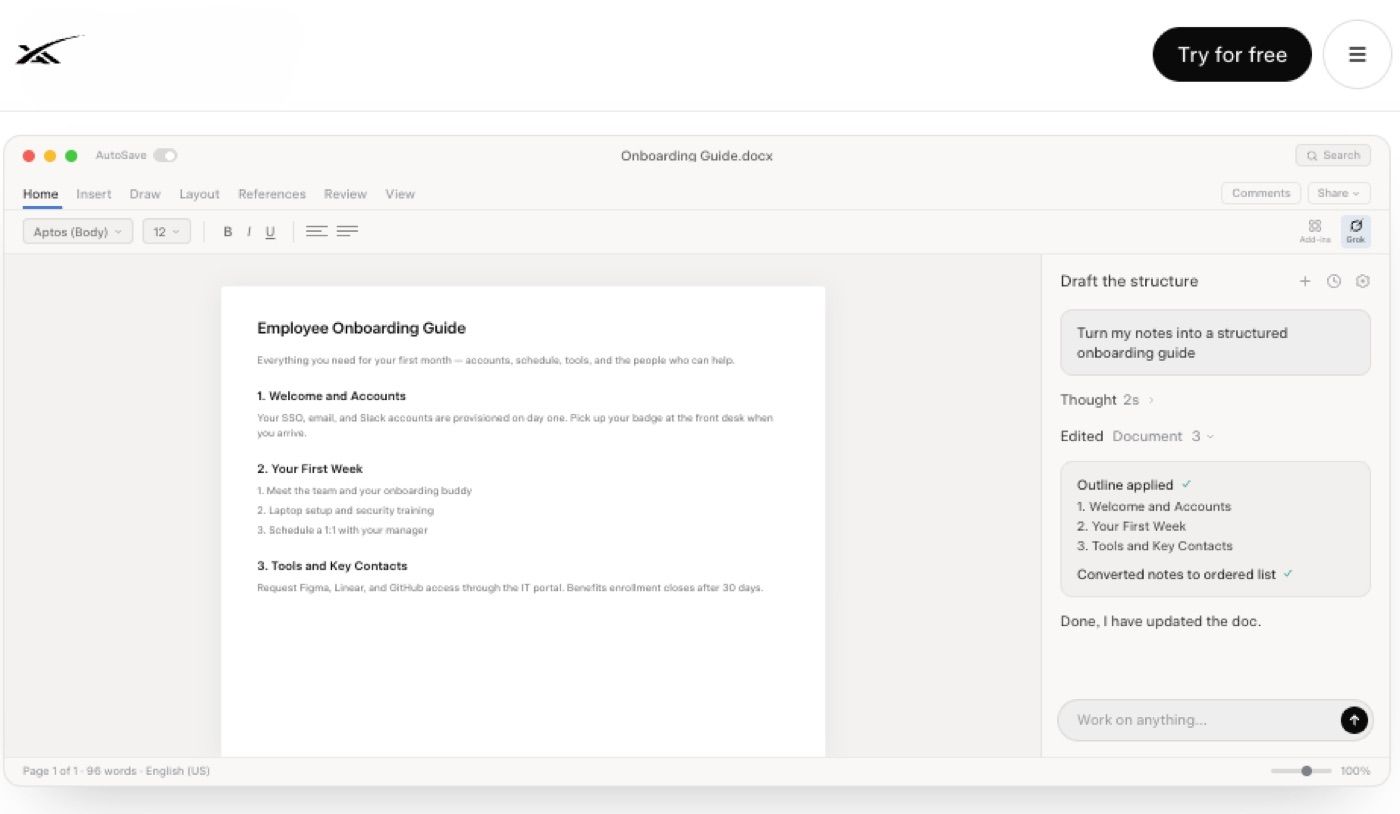
A safe Word workflow preserves the original, runs edits in visible form, and separates style changes from factual claims. For a 2,000-word memo, run three passes: structure rough notes, tighten language, then list factual claims that need a source. That third pass is the one many teams skip, and it is where quality is usually won.
For client documents, the add-in should draft and suggest. A person should approve final language, tone, commitments, names, dates, prices, and compliance-sensitive claims. If you let the model rewrite a pricing paragraph and only skim for tone, you can ship a commitment nobody approved.
What this resolved: a Grok word add-in can turn messy notes into structured drafts and keep long files consistent. What it left unsolved: approved commitments, legal meaning, and author voice still need a named owner.
PowerPoint Workflows Without Silent Number Drift
Grok PowerPoint workflows are strongest when the task is narrative and structural: turn an outline into slides, expand a deck, rewrite titles, tighten speaker notes, or make a recommendation easier to follow.
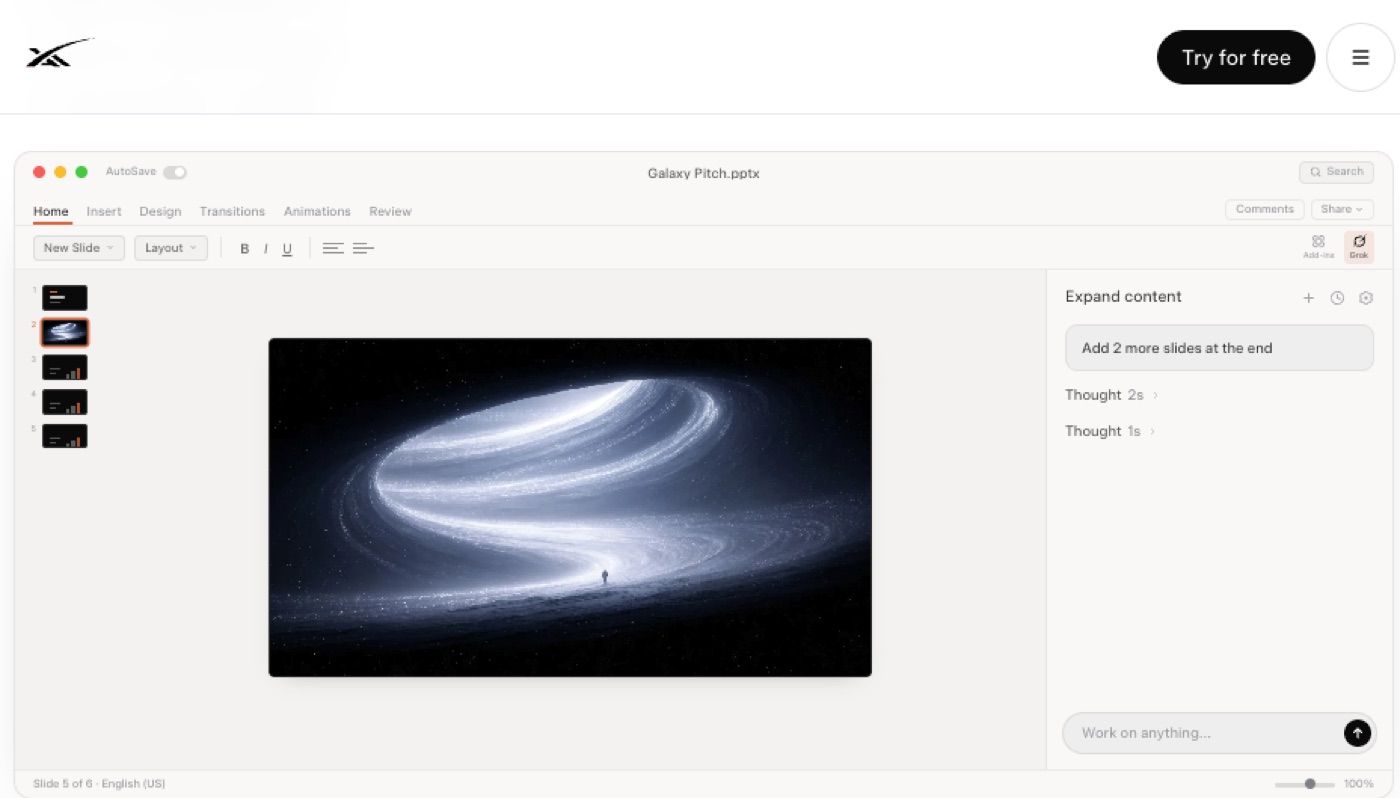
xAI positions Grok for PowerPoint around outlines into slides, deck expansion, and narrative tightening. That does not mean a perfect board deck from one prompt. A safer workflow is staged:
| Step | PowerPoint task |
|---|---|
| 1 | Create or revise a 5-slide outline |
| 2 | Ask Grok to draft slide titles and bullets |
| 3 | Review every generated claim against source notes |
| 4 | Ask for tighter narrative only after facts are checked |
| 5 | Save a reviewed copy before sharing |
Ask Grok to turn a QBR outline into five slides, then check three fields by hand: revenue number, customer count, and forecast date. If those three values survive correctly, the workflow is useful. If one changes silently, the deck is not ready for external use. For the broader "plugin versus agent that builds the whole file" decision, use the PowerPoint plugin guide.
What this resolved: PowerPoint add-ins help with structure, titles, expansion, and narrative edits. What it left unsolved: brand compliance, numerical accuracy, legal claims, and real template rules still need a reviewer.
Limits, Paid Access, and Tenant Controls
The biggest limit is not whether Grok can create a slide, formula, or paragraph. The biggest limit is whether the workflow can prove what changed and who approved it.
Office add-ins should not be treated as complete cross-Office automation. Do not promise that Grok can fully generate every deck, analyze every workbook, or move work automatically between PowerPoint, Excel, and Word without user review. Public materials show strong file-specific capabilities, not end-to-end business process automation.
Also check enterprise controls. Connector materials describe OAuth-based access and note that Business and Enterprise users may need admin provisioning before organization members can use connectors. If an Office file pulls from email, SharePoint, Drive, or other systems, connector permissions become part of the rollout.
For EU teams, status should be checked through Microsoft Marketplace availability, Microsoft tenant policy, xAI account access, and local data-handling rules. API status is not the same as Office add-in status. Channel-level EU notes in our Grok EU release tracker are useful context, but your tenant test is still the source of truth.
Zentor fits as an adjacent workflow layer when Office work becomes recurring: collecting sources, preparing files, preserving logs, and handing drafts to a person for review. Zentor's AI workflow automation covers recurring files, browser tasks, reports, and review records. For simpler recurring work that needs a managed assistant path rather than a one-file add-in, see automate tasks with AI.
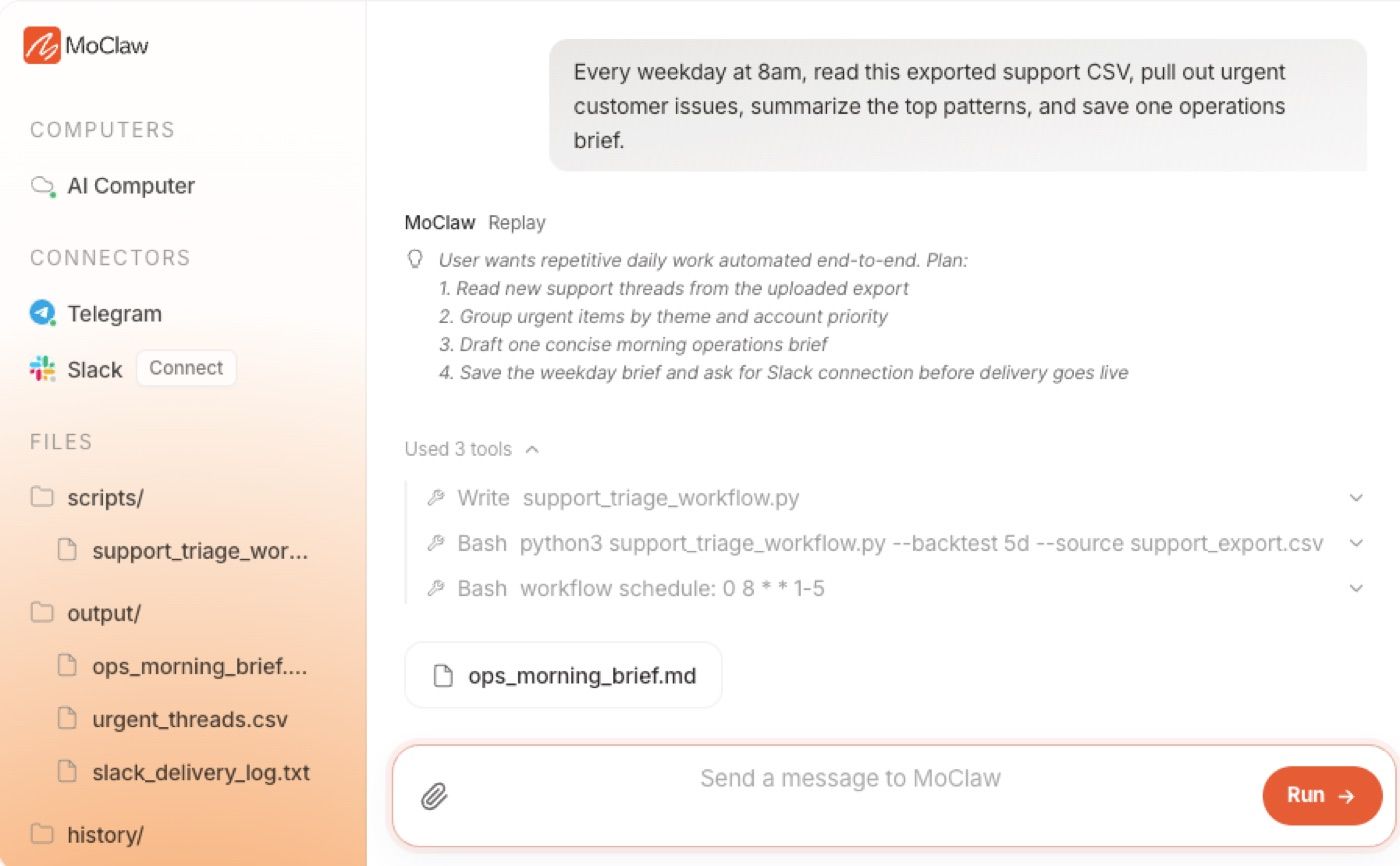
What this resolved: paid access, tenant controls, and review ownership are part of the product, not side notes. What it left unsolved: regional Marketplace behavior can still change after a successful pilot.
FAQ
Who reviews generated Office files before sharing?
The file owner should review the final version before sharing. For a deck, that may be the presenter. For a workbook, it should be the person accountable for the numbers. For a Word document, it should be the owner of the claim, policy, or client relationship.
Can Office outputs move into a cloud workflow?
Yes, if the team exports or stores the reviewed file in a place the cloud workflow can access. Treat the Office add-in output as a draft artifact first. Once reviewed, it can become an input for recurring reports, delivery workflows, or browser-based follow-up tasks.
Should teams keep original files after AI edits?
Yes. Keep the original file, the AI-edited draft, and the final reviewed version. This matters for rollback, audit, and reviewer confidence. If the add-in changes a formula, slide, or paragraph, the team should be able to compare before and after.
What happens when add-in access changes by region?
Pause affected workflows and preserve the last working files, prompts, outputs, and review notes. If EU or tenant access changes, do not switch to another channel blindly. Recheck account status, Microsoft admin policy, data handling, and whether the same file-level behavior is available elsewhere.
Treat Grok Office Add-ins as Draft Tools
Grok office add-ins make Excel, Word, and PowerPoint work faster because they operate inside the file where the work already happens. The responsible setup is not "let Grok finish the deck or workbook." It is staged file work: start with a copy, ask for specific changes, review the touched slides, cells, or paragraphs, and only then share the final version.
That is how a Grok office add-in becomes useful without turning real business files into uncontrolled drafts. If your next job is choosing between an in-app PowerPoint co-pilot and an agent that builds the whole deck, start with the plugin guide. If your next job is recurring collection, logging, and handoff around those files, a managed path like Zentor is the adjacent layer.
Editor's note: Availability, Marketplace wording, and product-page claims were checked against xAI and Microsoft listings on July 31, 2026. Office add-in access, paid-plan gates, and regional behavior move quickly, so re-check the linked sources before a production rollout.
Continue Reading
More Guide
OpenAI Models in Cursor: What Happens Nov 12

Manus AI Pricing: What 4,000 Credits Buys

8 Ways to Cut Your AI Agent Bill
Content Creation Workflow: Brief to Publish

Rune IDE: Keyboard-Driven and Agent-Optional

Browser Use Life Recorder: A Local Audio Diary
The Zentor editorial team writes about workflow automation, AI agents, and the tools we build. Default byline for industry overviews, listicles, and collaborative pieces.
Ready to put this into practice?
MoClaw runs browser tasks, research, and schedules automatically. Try it free.
References: Microsoft Marketplace: Grok for Microsoft 365 · Microsoft Marketplace: Grok by SpaceXAI for Word · xAI: Grok use cases for Microsoft 365 · xAI: Grok for Excel · xAI: Grok for Word · xAI: Grok for PowerPoint