Claude Code Workflow Automation for Reports

Claude Code workflow automation can turn a folder of notes, research files, and instructions into structured, reviewable report drafts with source checks.
Table of Contents
Claude Code workflow automation can turn a prepared folder of notes, research files, and instructions into a structured report draft with source checks and human review.
Key takeaways:
- Use Claude Code workflow automation for one-time, semi-automated report work, not background always-on reporting.
- The safest folder-based workflow starts with clean source files, a recipe brief, source inspection, and final human ownership.
- Claude Code is still coding-first, so report automation should stay inside reviewable file operations and documented boundaries.
- Missing files, conflicting sources, and unsupported claims should be surfaced in the report, not hidden by smoother writing.
- MoClaw fits when a report workflow needs recurring cloud execution, browser work, scheduled delivery, and review records.
Hi, I'm Vera. I used to build weekly research reports by opening six folders, rereading old notes, checking which files were final, and then asking AI to summarize everything. The messy part was never the writing. It was source control: which file mattered, which number was current, and which claim needed review. A Claude Code recipe can help with that, as long as the workflow treats the report as a draft with evidence, not as a finished truth machine.
What Claude Code Workflow Automation Can Handle
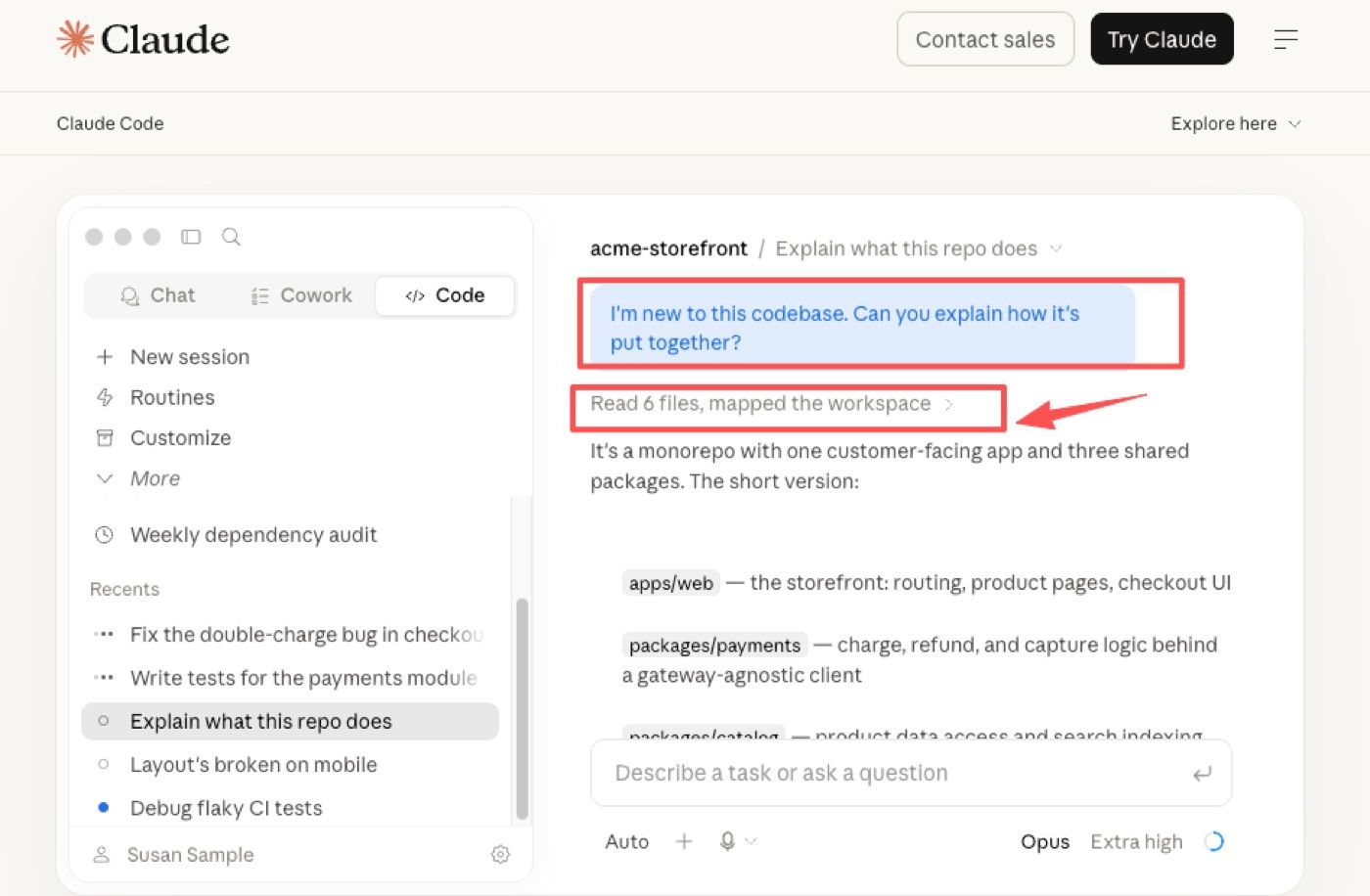
Claude Code is officially centered on software work. Anthropic describes it as an agentic coding system that reads codebases, edits files, runs tests, and delivers committed code. For reports, that means the useful pattern is not "turn Claude Code into a generic office assistant." The useful pattern is to borrow its file-aware workflow for folders, notes, drafts, and structured outputs.
File-based inputs
A report workflow can start from a source folder: meeting notes, CSV exports, markdown files, PDFs, prior reports, screenshots, and research clips. Claude Code can inspect project files and help organize them into a draft, but the team should define which folder is in scope.
A good folder-based workflow begins with a small manifest. The manifest names the source folder, expected files, report goal, excluded materials, and output file. That prevents the agent from treating every nearby file as fair game.
Research and documentation tasks
Claude Code workflow automation can support research tasks when the source set is already collected. For example, a team might save product notes, competitor pages, transcript excerpts, and internal docs into one folder, then ask Claude Code to draft a weekly report.
This is where Claude Code documentation matters as an operating input. If the report depends on tool behavior, product limits, or technical claims, store the exact Claude Code documentation excerpts or source links in the folder. The recipe should ask the agent to cite those sources instead of relying on memory.
Structured outputs
The best output is not just a polished report. It is a structured draft with sections, source references, unknowns, and review notes.
For an automated weekly report, useful sections include executive summary, key changes, risks, data notes, source list, conflicts, and decisions needed. For a research report, use claims, evidence, confidence, implications, and open questions. Structure makes the output easier to inspect.
A One-Time Report Workflow
This is a one-time, semi-automated workflow. It can be reused, but it should not be described as a background reporting system unless the team has built scheduling, monitoring, and review outside Claude Code. If you want the broader recipe pattern for meetings, research synthesis, and document cleanup, we covered it in Claude Code recipes for knowledge workers.
Prepare the source folder
Create one folder for the run. Add only the files the report should use. Separate source files from generated outputs. If possible, include a simple README or manifest with the report title, audience, date range, owner, and expected output.
A clean structure might include sources, prior-report, notes, and output. If the report uses client documents, make a copy or work in a limited folder. Do not give the workflow accidental access to unrelated files. Anthropic's Claude Code best practices make the same point for code: give the agent explicit context about what to read and what to touch, instead of hoping it guesses well.
This is the first place human judgment matters. If the wrong files enter the folder, the report will look organized while being based on the wrong evidence.
Define the recipe instructions
The recipe is a reusable instruction. It should not be a giant prompt. It should be a short operating brief.
A practical report recipe might say: read all files in sources, list what you inspected, identify missing or stale files, draft the report in the requested structure, cite source filenames beside each major claim, and stop before producing the final client version.
I like to add one blunt sentence: "If a claim is not supported by the files, mark it as unsupported." That one line prevents a lot of elegant nonsense.
Run the task and inspect sources
Before asking for the full report, ask Claude Code to inspect sources and return a source inventory. The inventory should include file name, date if available, content type, relevance, and any access problem.
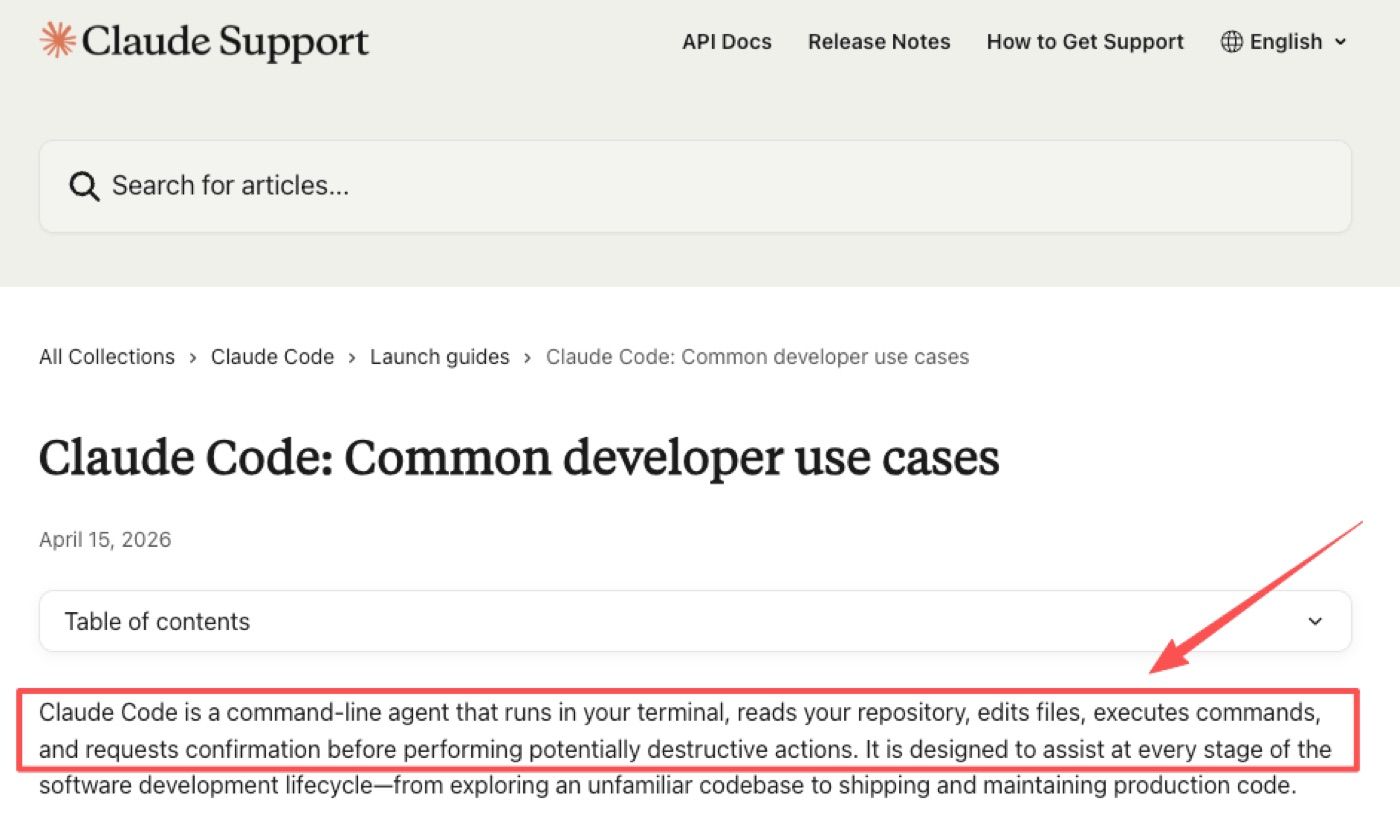
Anthropic's common developer workflow describes Claude Code as a command-line agent that can read repositories, edit files, execute commands, and request confirmation before potentially destructive actions. For reports, use the same discipline: inspect first, then draft, then review.
A good first run asks: "List the files you will use, files you will ignore, and any missing inputs before writing the report." If the source inventory is wrong, stop there.
I learned to stop earlier after testing this on 8 report runs. When I asked for the full draft first, 5 drafts looked usable but hid source problems. When I asked for a source inventory first, 4 problems appeared before drafting: one missing export, one stale PDF, one duplicate screenshot set, and one file that belonged to a different project. That changed my rule: inspect sources before asking for the report.
Export the final document
After review, export or save the final document in the chosen format. The output might be markdown, a Word-style draft, a PDF-ready outline, or a spreadsheet-backed report. If the report is going to a client, keep a draft version and a final approved version.
The export step should record what changed after AI drafting. If a human rewrites conclusions, edits numbers, or removes a claim, keep that decision visible. Report automation is only useful if the final file remains accountable.
Human Review and Error Handling
The risky moment is when a clean report format makes the output feel more certain than the source folder deserves. Human review should focus on evidence, ownership, and unsupported claims.
Missing files
Missing files should appear in the report as a gap. If the weekly sales export is absent, the report should not infer sales performance from meeting notes. If the latest customer transcript is missing, the report should not pretend the customer view is current.
A useful rule is: missing source, missing claim. The report can still proceed, but the missing input belongs in the "unknowns" or "data gaps" section.
Conflicting sources
Conflicting sources are common in knowledge work. A spreadsheet may show one number, a slide may show another, and a meeting note may mention a third. The workflow should not average them quietly.
Instead, ask Claude Code to list conflicts with filenames, dates, and the exact value or claim that conflicts. A person can then decide which source is canonical. This is especially important for finance, customer commitments, roadmap dates, and usage numbers.
I have seen this happen with simple weekly numbers. In one report folder, the spreadsheet showed 4.8% growth, the slide said 5.1%, and the meeting note rounded it to "about 6%." None of those numbers looked dramatic alone, but they could not all be the final source. I would rather see the conflict listed plainly than receive one confident sentence that hides the mismatch.
Unsupported claims
Unsupported claims should be downgraded. "Customers are unhappy with onboarding" may be valid if five recent support transcripts show the same theme. It is not valid if one person mentioned it in a meeting.
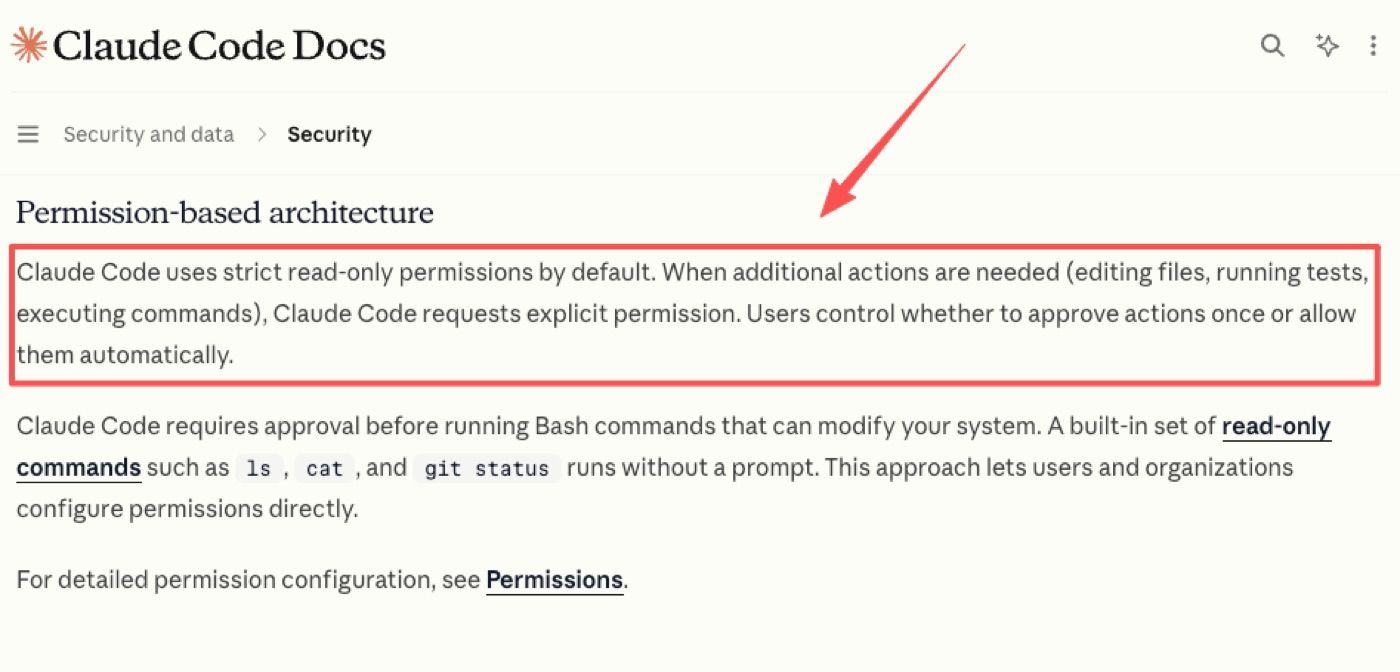
Claude Code security practices emphasize permission control, user responsibility, and review when tools can affect files or commands. The broader lesson from read-only defaults, permission prompts, and user approval applies to report work too: let the agent prepare evidence, but do not let it silently decide what becomes final. Anthropic's sandboxing work pushes the same idea at the infrastructure level: limit what the agent can reach, then review what it produced.
When a Local Recipe Is Not Enough
A local recipe is useful for one-time reports, folder cleanup, research synthesis, and semi-automated drafts. It is not enough when the workflow needs scheduled runs, browser monitoring, ongoing source collection, shared delivery, or persistent task logs.
For example, a monthly investor report from one prepared folder may fit Claude Code. A weekly competitor report that checks websites, saves screenshots, compares prior findings, and reminds a reviewer every Friday needs more than a local folder. It needs a managed execution layer.
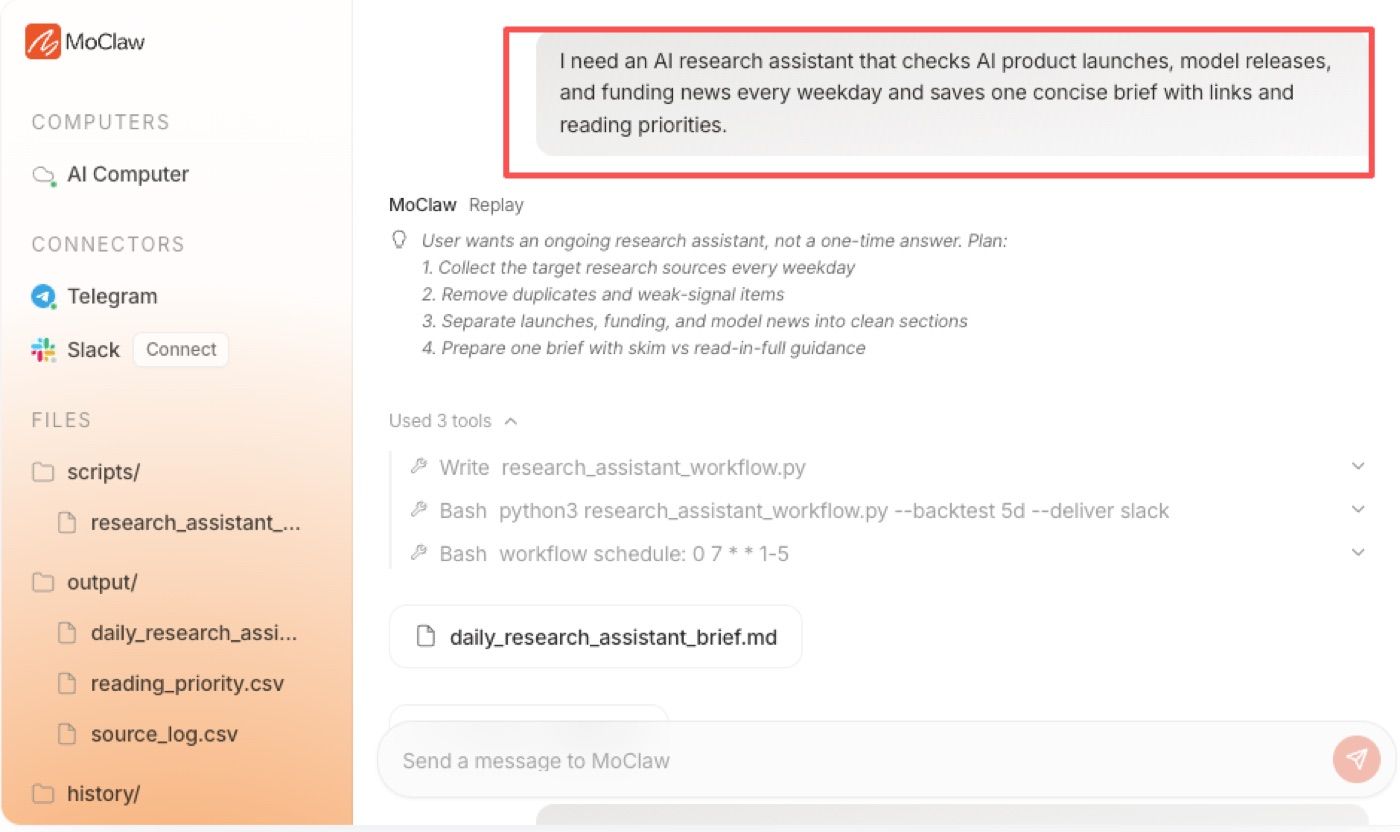
MoClaw's AI workflow automation is relevant for that broader pattern because it frames recurring work around browser tasks, files, reports, logs, and scheduled delivery. For research-heavy reporting, MoClaw's AI research assistant shows how recurring briefings can keep sources and review visible over time.
The practical decision is simple: use Claude Code workflow automation when the report can be built from a prepared folder and reviewed once. Use a managed cloud workflow when the report depends on recurring collection, browser work, reminders, and durable delivery records.
FAQ
Who owns the final report when several people supplied files?
The report needs one accountable owner even if many people supplied files. Contributors own their source accuracy, but the report owner approves the final structure, claims, and delivery. If ownership is unclear, label the output as a draft and assign a reviewer before it leaves the team.
How should teams handle a failed run after partial output?
Keep the partial output, source inventory, error message, and run notes. Do not overwrite the folder and start blindly. First identify whether the failure came from missing files, unsupported format, permission limits, conflicting instructions, or a bad recipe. Then rerun only the affected step if possible.
Should old report outputs be kept with the recipe?
Keep examples, but do not mix old outputs with current source files. Store old reports in an archive folder and label them clearly. They are useful for format reference and trend comparison, but they should not be treated as current evidence unless the recipe explicitly asks for historical comparison.
What happens if the source folder structure changes?
The recipe should pause and ask for confirmation when expected folders or filenames are missing. A changed folder structure can cause skipped evidence or duplicate inputs. Update the recipe, run a source inventory again, and only then generate the report.
Claude Code Workflow Automation Works Best With Reviewable Folders
Claude Code workflow automation is strongest when the team prepares a clean source folder, writes a reusable recipe, inspects sources before drafting, and keeps a human owner for the final report. It can reduce the busywork around research files, notes, documents, and structured outputs, but it should stay honest about missing evidence and unsupported claims. The win is not full automation. The win is a repeatable report workflow that makes review easier.
Continue Reading
More Guide
What Is Hermes Bot Mode? Bots and Routines
OpenAI Assistants API Deprecated: What Broke
MCP Tools: What They Are and Which to Use

OpenAI Models Not Available in Cursor Nov 12

Coding Agent Security: When Your Tools Lie

OpenAI Python HTTPX2: What Actually Breaks
The MoClaw editorial team writes about workflow automation, AI agents, and the tools we build. Default byline for industry overviews, listicles, and collaborative pieces.
Ready to put this into practice?
MoClaw runs browser tasks, research, and schedules automatically. Try it free.
References: Anthropic — Claude Code · Claude Code — Common developer use cases · Claude Code Docs — Security · Anthropic — Claude Code best practices · Anthropic — Claude Code sandboxing