Skydive in Slack: How AI Teammates Work
Skydive Slack puts AI teammates inside team conversations. Learn how requests, context, approvals, and connected work should flow in practice.
Table of Contents
Skydive Slack is the Slack workspace entry point for Skydive's AI teammates. Instead of asking an agent from a separate dashboard, a team can mention a Skydive agent in a channel, continue the work in a thread, or send the agent a DM when the task is better handled privately.
Key Takeaways:
- Skydive Slack agents can work in channels, threads, and DMs after being added to the right place.
- A Skydive Slack agent should be briefed in the thread where the task context lives.
- Agent approvals matter before sending, recording changes, publishing files, or using sensitive connected tools.
- Team chat automation still needs a source of truth for task evidence.
I like Slack-based agents because they remove one friction point: "Where do I ask for this?" But I have also seen requests split across a channel, DM, and file thread until nobody knew what the agent used.
I checked Skydive's Slack page, launch materials, and Slack Marketplace listing on September 2, 2026. What matters for this article is not every Skydive integration. It is the practical workflow: how a request starts in Slack, how context stays attached, where approvals belong, and when a human should stop the agent before work leaves the conversation.
Quick Answer
Use Skydive in Slack for low-risk delegation that begins in team conversation: research, sorting, draft preparation, report follow-up, and status checks. Do not use it as a shortcut for irreversible action.
The simplest pattern is: brief the agent in the right thread, keep evidence attached, ask for a draft, then let a person send, edit, approve, or escalate.
How Skydive Enters a Slack Workspace
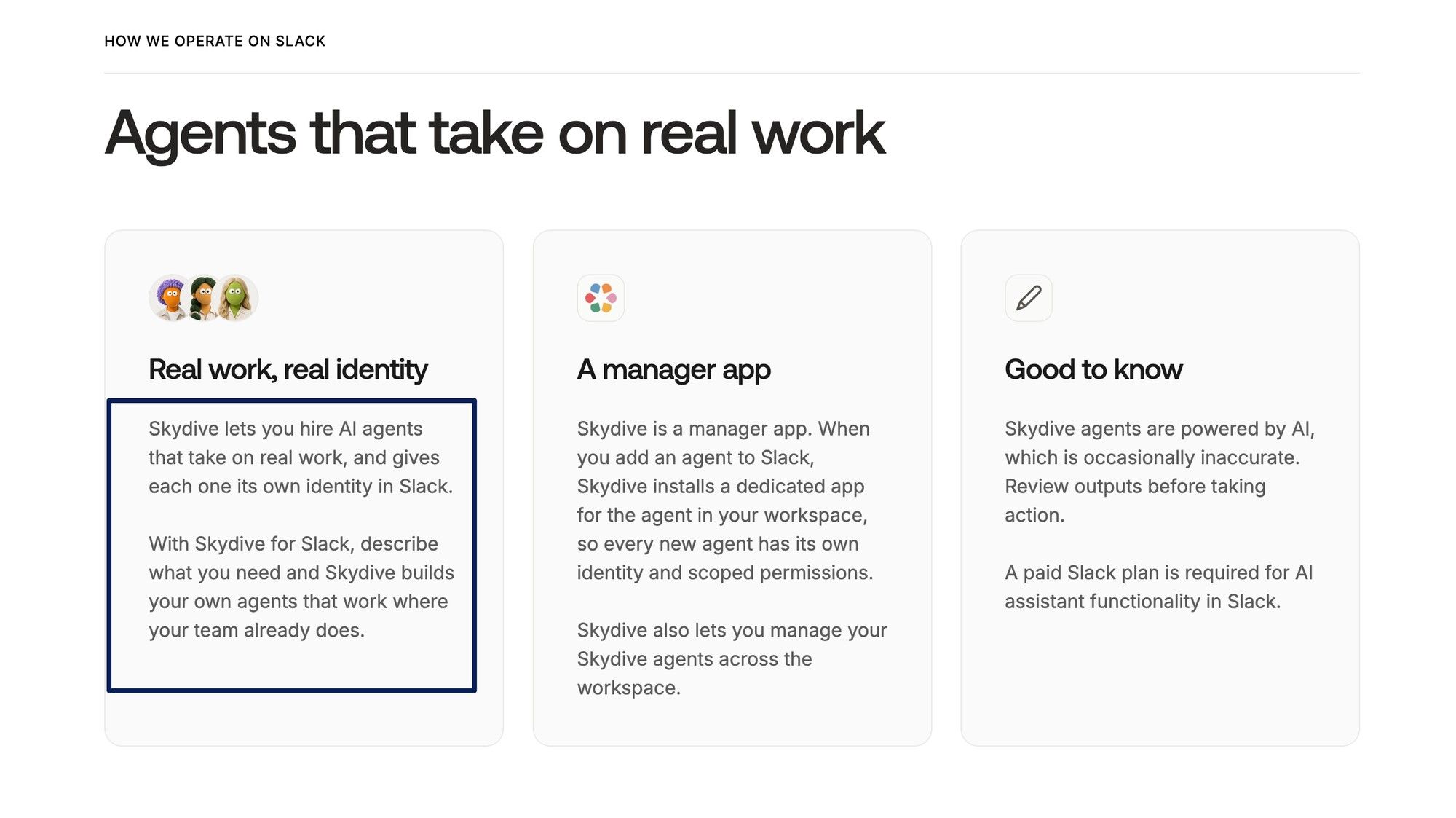
Skydive enters Slack as an app and agent surface. The Skydive Slack workspace flow gives each agent its own name and identity, with a manager app that installs a dedicated app for each agent.
That identity matters. A teammate can see which AI teammate replied and which thread carried the context. Skydive limits channel visibility to places where the agent has been invited.
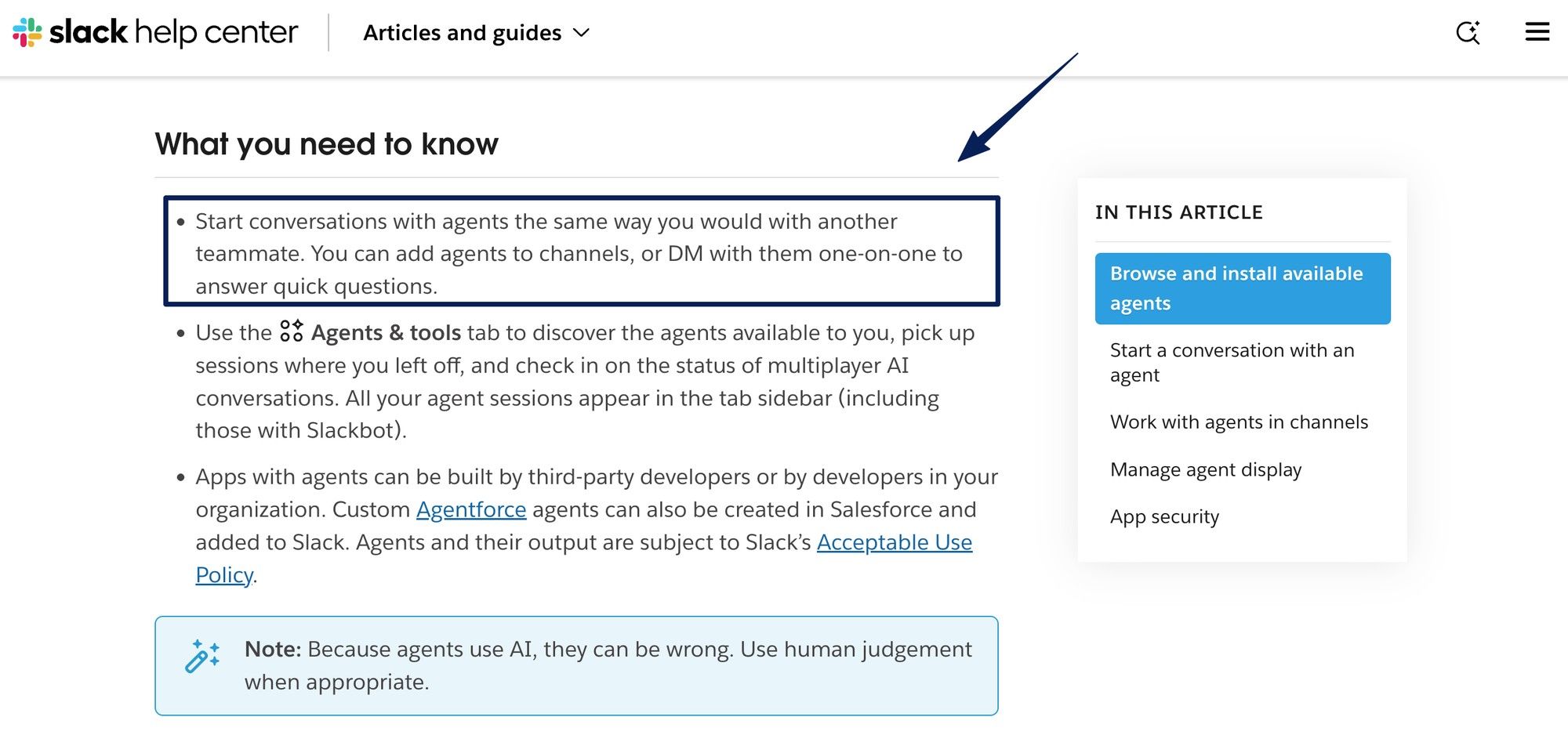
Slack's AI agents experience also lets users add agents to channels, DM them, discover available agents, and return to agent sessions.
Start a Task From a Team Conversation
Start with a request that a person in the channel could understand. A good prompt gives the Skydive Slack agent the goal, sources, output shape, and review point.
For example: "@MarketScout, read the three links in this thread and draft a short competitor update. Use sections for product change, pricing signal, and open question. Do not send it outside Slack." That beats "look into Acme."
Skydive agents act when mentioned in a channel or thread, or when sent a DM. Make the trigger obvious: tag one agent, keep the task in one thread, and avoid midstream scope changes.
Keep Context Attached to the Right Thread
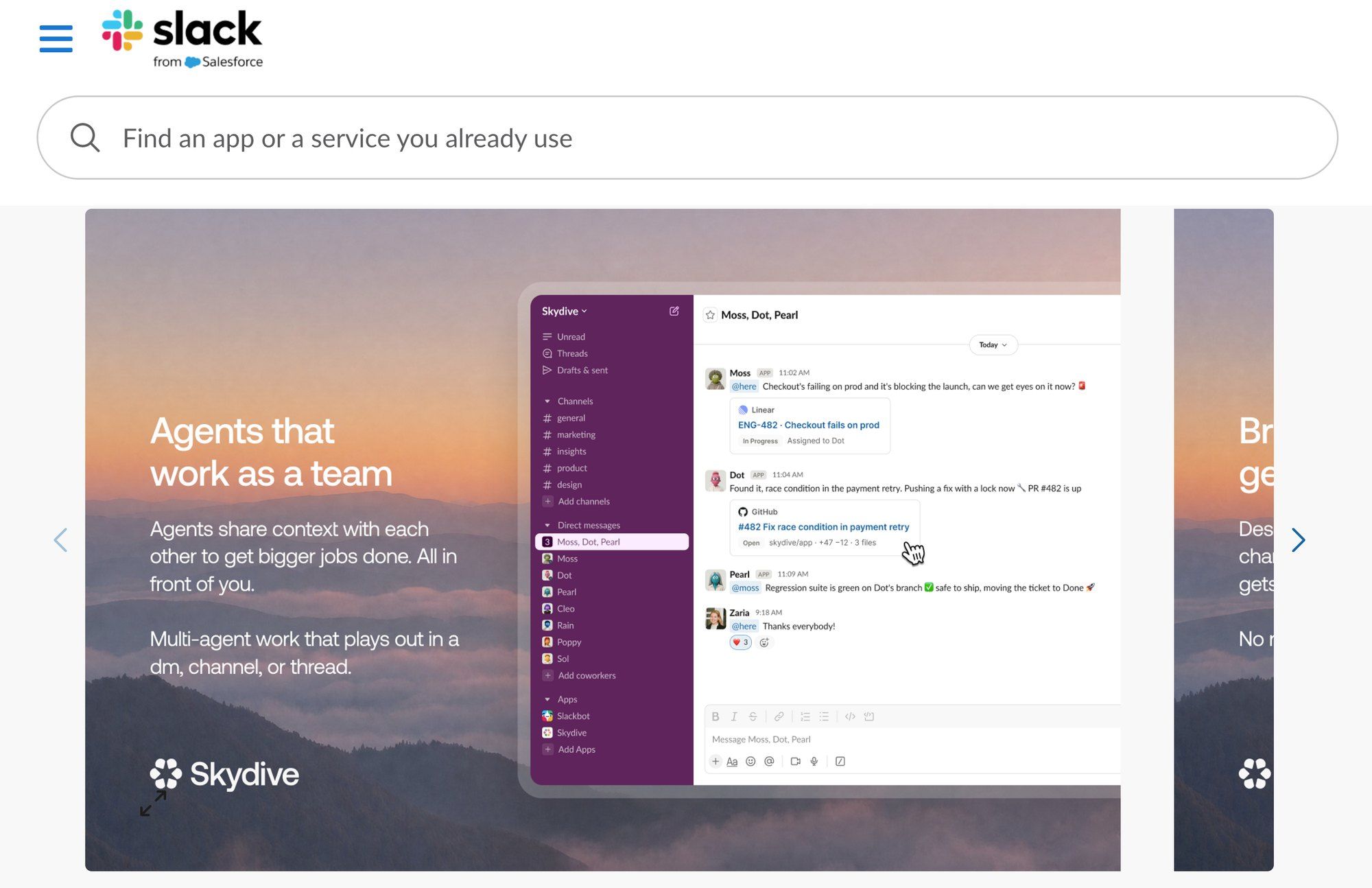
The best Skydive Slack task is traceable. The request, files, source links, clarifications, and result should live close together.
Slack delegation breaks when one person uploads a PDF, another explains the goal in a DM, and a third asks for a rewrite elsewhere. The reviewer then has to rebuild the record.
For multi-agent work, keep handoffs visible. MoClaw's agent handoff explainer covers why attribution gets messy when the work product is detached.
Review Actions Before Work Leaves Slack
Treat Skydive Slack as a drafting and coordination surface until the output is reviewed. Skydive notes that AI-generated responses may be inaccurate and need review before action. That is the operating rule.
A safe Slack workflow agent can summarize a thread, prepare a customer note, compare options, organize follow-up, or draft a report. A person should approve sends, access grants, file publishing, deletion, payment, or source-system updates.
The Slack Marketplace listing for Skydive includes workspace and conversation access plus action permissions. Administrators should review scopes, connected tools, and approval paths before using sensitive channels.
Set Boundaries for Channels and Connected Tools
Start with one channel, one task type, and one named reviewer. A pilot should use low-risk work, such as research summaries, meeting follow-up, or draft updates.
The Slack security surface covers scoped channel access, encrypted Slack tokens, retention, deletion, model providers, hosting, and LLM routing. Review those fields before adding client data or regulated records.
For browser or tool-based work, the rule is read-only first, draft-only second, action later. MoClaw's AI agent security guide covers prompt injection, excessive permissions, unsafe tools, and data leakage.
Where Slack-Based Delegation Breaks Down
Slack-based delegation breaks down when the channel becomes the whole workflow. Slack is good for starting work, clarifying context, and reviewing results. It is weaker as the only archive for evidence, versions, approvals, and final records.
The warning signs are easy to spot. People tag different agents for the same task. Files appear without an owner. The agent answers in one thread while the decision happens in another.
Keep Slack as the visible workbench, not the whole control system. For browser-heavy tasks, MoClaw's AI browser automation guide is a reminder that websites, permissions, latency, and tool failures still need review.
FAQ
Can Slack users invoke a specific Skydive teammate by role name? Yes, if that teammate has its own Slack identity and is available in the workspace or channel. Standardize role names so users do not tag the wrong AI teammate.
Can Slack reopen work that began with Skydive by email? Skydive positions agents as having one identity across Slack, email, and iMessage. For an email-started task, ask the agent to reference the original thread and confirm visible context.
Can one Slack upload be assigned to several Skydive teammates? Only if those agents are in the right channel or thread and have access. For cleaner review, assign one owner agent first, then ask another to review.
Can one Skydive teammate appear in several Slack channels simultaneously? Yes, Skydive agents can work in channels, threads, and DMs, but channel access is invitation-based. Add the teammate only where it needs to work.
Does Skydive return generated files into the requesting Slack channel? Agents reply where they were asked, and the broader platform describes file creation. For delivery, treat the Slack reply as the review point: confirm the file name, sources, destination, and final storage location.
Keep Slack Fast Without Letting It Get Loose
Skydive Slack is useful because delegation feels natural: mention the right agent, keep the work in the thread, and bring the result back to the team. The workflow holds only if people stay disciplined. Give the agent a narrow task, keep context attached, require agent approvals for meaningful actions, and move final records to the system that owns them.

Continue Reading
More Guide
Turn a YouTube Video to Notes: course2md
How to Opt Out of Mistral AI Training
What Is M3E Canvas? Sketch UIs, Get AI Prompts
MiniMax M3 Free Ended: What to Use Instead

MarkItDown: When Your Markdown Comes Back Thin
Whisper-1 Deprecated: What Actually Breaks
The MoClaw editorial team writes about workflow automation, AI agents, and the tools we build. Default byline for industry overviews, listicles, and collaborative pieces.
Ready to put this into practice?
MoClaw runs browser tasks, research, and schedules automatically. Try it free.
References: Skydive · Slack Help Center · Slack Help Center · Skydive