What Is M3E Canvas? Sketch UIs, Get AI Prompts

M3E Canvas is a free browser tool for sketching Material 3 Expressive app screens and exporting them as a prompt your AI coding agent can build from.
Table of Contents
The gap between a picture of an app and a working app has always been the expensive part. You draw the screens, you write a spec describing the screens, someone reads the spec, and what comes back resembles the drawing the way a police sketch resembles a face. M3E Canvas takes a narrower run at that problem: sketch the screens in your browser using real Material 3 Expressive parts, then press one button and get a written brief you paste straight into Claude Code, Codex, Gemini CLI or Cursor.
It appeared on GitHub on 2 September 2026 and had 512 stars two days later. MIT licence, no backend, nothing at all to install, and a live version at lnkiai.github.io/m3e-canvas that runs entirely in the tab you open it in.
What M3E Canvas is, precisely
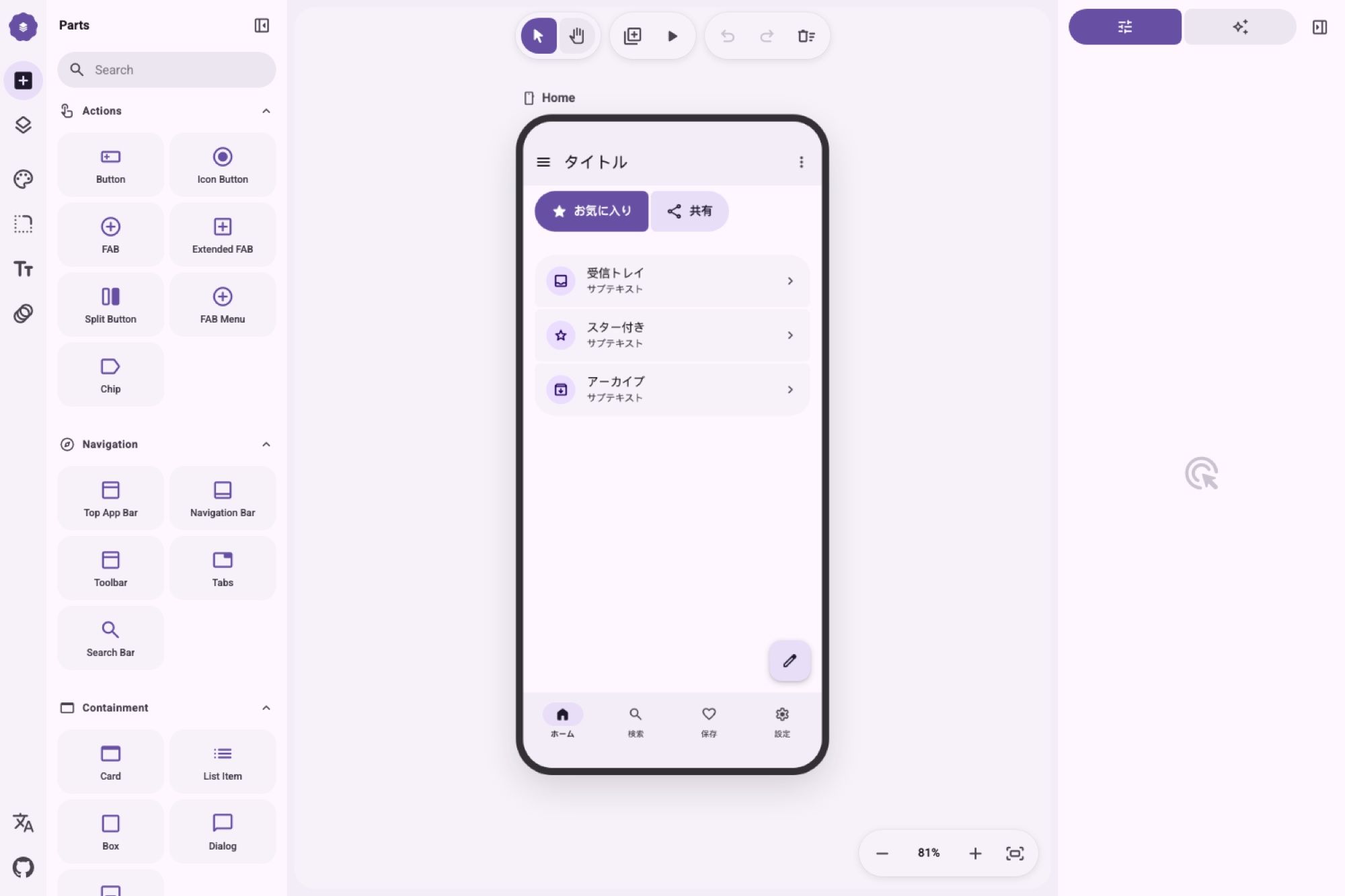
A drag-and-drop editor for phone screens, with a parts panel down the left and a prompt panel down the right.
The parts are the real Material 3 Expressive set rather than approximations of it: buttons, icon buttons, FABs, split buttons, FAB menus, chips, top app bars, navigation bars, floating toolbars, tabs, search bars, cards, list items, dialogs, snackbars, text fields, switches, checkboxes, radio buttons, sliders, badges, dividers. The loading indicator is the shape-morphing one ported over from Google's own material-components-android, credited in the repo's NOTICE file, not a lookalike someone redrew.
What it doesn't do is write code. Nothing compiles here. The output is language, and that turns out to be the interesting decision.
The prompt is the artefact
Press the button and the whole design, or one screen, collapses into a natural-language brief. Not JSON, not a component tree, not a design token dump. Prose.
That brief includes the parts you placed, the notes you wrote about what each one does, the colour scheme derived from your seed colour with every Material 3 role spelled out by name and hex, the corner shape setting, the typeface, and the motion scheme. It also describes overlaps and side-by-side rows explicitly, which is a small detail doing heavy lifting: coding agents reliably mangle layout when the input is ambiguous about what sits next to what.
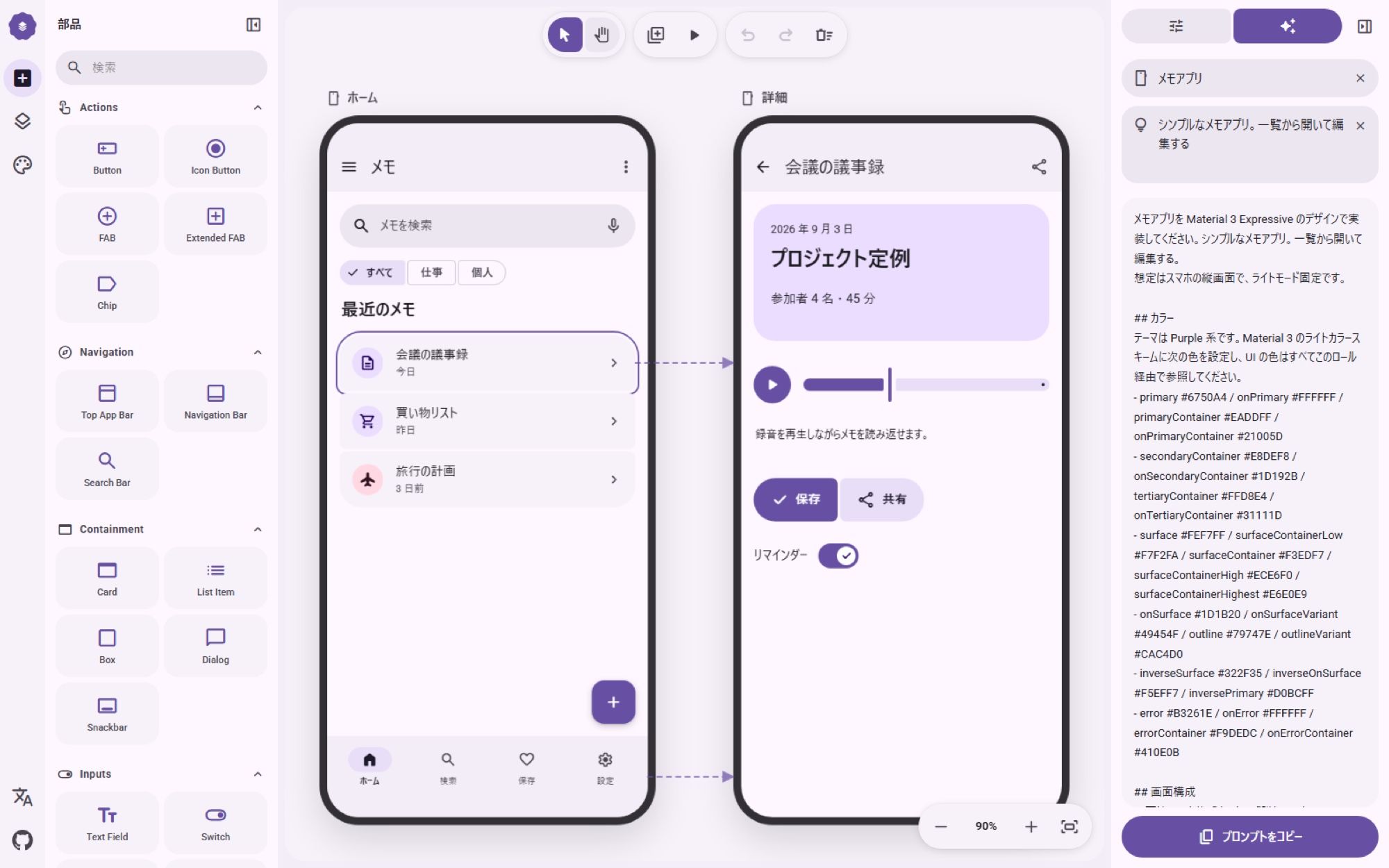
You can have that brief in Japanese, English or Chinese. The default is Japanese, which tells you something about who built it, and the language toggle sits in the left rail.
Clicking through it before anybody builds anything
The feature that separates M3E Canvas from a static mockup tool is navigation. Any button, app bar icon or navigation bar destination can point at another screen, or at "back," with a transition attached: slide from any of the four edges, fade, expand, or nothing. Screens can also respond to swipes, and in preview mode the screen follows your finger and the reverse swipe takes you back.
Arrows on the canvas show the flow. Hit P and you're tapping through the thing.
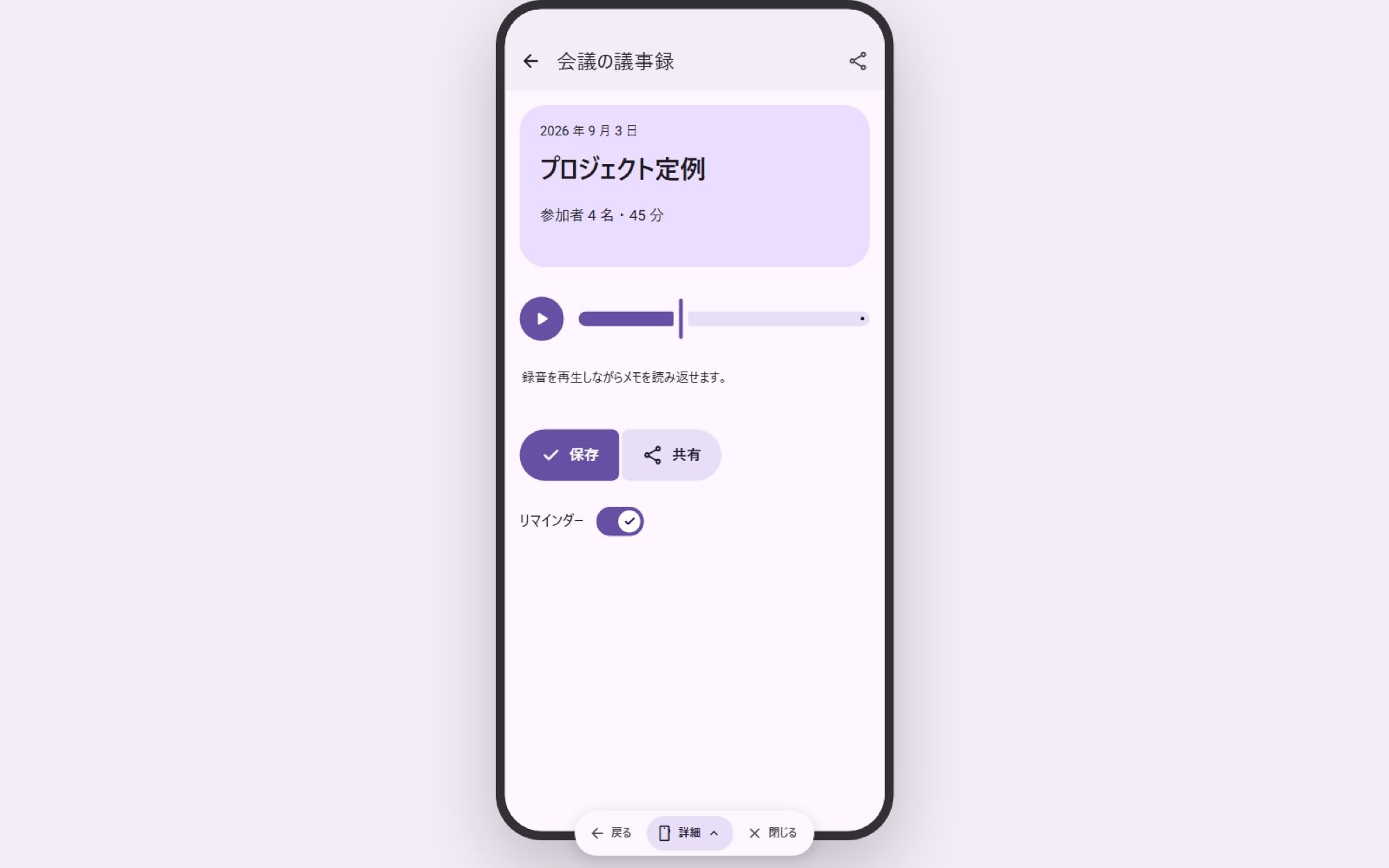
This matters because the questions that kill a build are usually navigational, not visual. Where does the back button go from the detail screen. What happens when you swipe on the list. Answering those before an agent writes a line of code is worth more than getting the corner radius right, and M3E Canvas answers them in the tool rather than in a comment thread.
The magnetic connections are a nice touch too: bring two buttons close together and they fuse into a connected group, with the facing corners softening as they meet. That's genuine M3 Expressive behaviour rather than a drawing of it.
Who this is actually for
Not designers with a Figma licence and a component library. They already have better tools for the drawing part.
The person M3E Canvas fits is the one who can see the app clearly and can't build it: a product manager sketching a flow before a planning conversation, a founder with an idea and a coding agent subscription, an engineer who wants the UI decided before touching a repo. It's a specification instrument aimed at people whose next step is a prompt rather than a pull request.
There's a phone version too, deliberately reduced: one screen, buttons only, edited through a bottom sheet. Add a button, tap it to move it, change its text and icon. The multi-screen editor stays on desktop, which is the right call rather than a limitation.
Where the workflow breaks
Two honest limits.
The first: everything lives in your browser's localStorage. No account, no sync, no server. Clear your site data and the design is gone. For a tool this young that's a reasonable trade for having zero signup friction, but treat exported PNGs and copied prompts as your only backup, because they are.
The second is structural, and it isn't the tool's fault. A brief describing twelve screens is a large prompt, and a coding agent handed a large prompt in one shot will get most of it right and quietly invent the rest. The realistic pattern is screen by screen: M3E Canvas will export a single screen on its own, and that's the export you want. Ask for one screen, check it, ask for the next.
Which is where the failure mode of local agent runs shows up. Twelve screens generated one at a time is not a ten-minute job, and a laptop that sleeps mid-run leaves you re-prompting from memory. MoClaw covers that specific gap: a hosted cloud AI computer keeps the agent working through a long sequence of screens while you're away from the keyboard, and the session is still there when you come back to check screen seven. If you're new to handing work to an agent this way, our no-code AI agent guide covers the setup, and the notes on writing image prompts apply more than you'd think to writing UI prompts.
What the round trip looks like
Copy the brief, paste it, and what comes back is a first pass, not the app. Expect the structure to survive and the details to drift: an agent reading "floating toolbar above the navigation bar" will usually place both and occasionally stack them wrong, and it will almost always guess at spacing you never specified.
The fix loop is short, though, because you still have the canvas. Move the part, regenerate the screen prompt, paste the corrected brief for that one screen. You're editing a drawing rather than editing generated code, which is a much cheaper place to change your mind. Anyone who has tried to redirect a coding agent through conversation alone knows the alternative: four rounds of "no, the other one," each round rewriting files you'd already accepted.
Two things make that loop noticeably better in practice. Write notes on your parts, since the brief carries them through and "this opens the filter sheet" removes a guess the agent would otherwise make badly. And set the theme before you export anything, because a regenerated screen with a different seed colour means the agent rewrites your theme file on every pass.
Running that loop against a local dev server is fine until the loop gets long. Twelve screens, three passes each, and you're an hour into holding a terminal open. MoClaw takes the running part off your desk entirely by giving the agent a cloud AI computer of its own to work on, so the build and the preview live somewhere that doesn't shut when you close the laptop to go to a meeting.
The theme panel deserves its own paragraph
Four axes, all in one place, which is more than most prototyping tools give you.
Colour is either one of seven presets or a single seed colour that expands into a full Material 3 scheme you can then adjust, with light and dark, three contrast levels, and a switch for dynamic colour that matches the phone wallpaper. Shape sets square, rounded or full corners across every part at once. Type offers Roboto, Roboto Flex, Roboto Serif or the system font with the emphasized styles. Motion picks the standard or the expressive spring scheme, and that choice drives the preview animation too, so the springiness you set is the springiness you feel when you tap through.
All four end up written into the prompt, in words the agent can act on. A seed colour becoming twenty named roles with hex values is the difference between "make it purple" and a theme file.
Getting it running yourself
The hosted build is the fastest path and there's nothing to configure. If you want it local, it's a static Next.js 16 export on React 19: npm install, npm run dev on port 3000, npm run build writes to ./out. The repo publishes to GitHub Pages from main through its own Actions workflow, and hosting under a sub-path needs NEXT_PUBLIC_BASE_PATH set at build time.
That's a two-day-old project with working CI, three languages across every string, and a contributing guide that specifies English code comments. Somebody is being careful.
For an agent-first workflow the hosted version is enough. The reason to clone it is if you want to add parts, and given how new M3E Canvas is, part requests through Discussions will probably move faster than a fork will. MoClaw is the other half of that setup for anyone who'd rather not run the toolchain at all: the design happens in a browser tab, the build happens on a cloud machine, and neither one asks your laptop to install anything.
FAQ
Does M3E Canvas write the code itself?
No, and that's the design. It produces a written brief describing your screens, and any AI coding tool that accepts a prompt can build from it. The repo names Claude Code, Codex, Gemini CLI and Cursor, though nothing in the output is specific to those.
Is it free?
Yes. MIT licence, source on GitHub, hosted version free to use with no account. There's no backend to pay for, since your work is saved in your own browser.
Which AI models does the prompt work with?
Any model that takes text. The brief is plain language, so it isn't tied to a vendor, and you can regenerate it in Japanese, English or Chinese depending on what you're pasting into.
Does my design get uploaded anywhere?
It doesn't. Everything lives in localStorage in your browser. That also means it doesn't sync between devices and disappears if you clear site data, so export anything you'd be annoyed to lose.
Can I use it on a phone?
Partly. The phone build gives you one screen and buttons only, edited in a bottom sheet. Multi-screen work, navigation links and the layers panel need a desktop browser.
Continue Reading
More Guide
MiniMax M3 Free Ended: What to Use Instead

MarkItDown: When Your Markdown Comes Back Thin

Lightpanda Is Fast Because of What It Skips

OpenAI Deprecated Its Codex Skills Repo

Open Science: The AI Workbench for Researchers

How to Use GPT-6 Astra: What It Really Costs
The MoClaw editorial team writes about workflow automation, AI agents, and the tools we build. Default byline for industry overviews, listicles, and collaborative pieces.
Ready to put this into practice?
MoClaw runs browser tasks, research, and schedules automatically. Try it free.
References: https://github.com/lnkiai/m3e-canvas · https://lnkiai.github.io/m3e-canvas/ · https://github.com/material-components/material-components-android · https://github.com/lnkiai/m3e-canvas/discussions · https://fonts.google.com/icons