phone-harness: Let an AI Agent Use Your iPhone
phone-harness gives an AI agent control of a real iPhone via macOS iPhone Mirroring. How the OCR-and-taps loop works, and the permissions you hand over.
Table of Contents
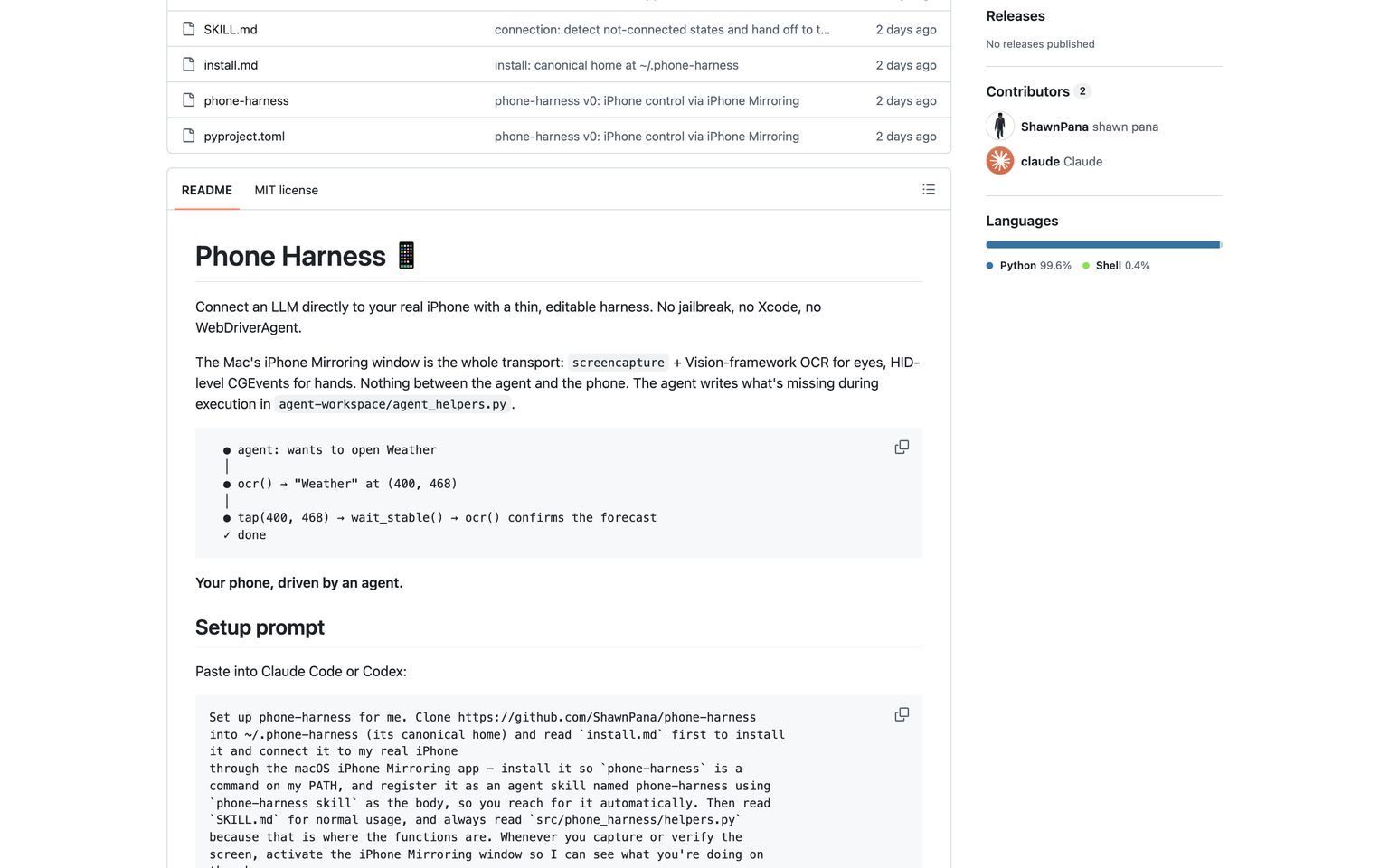
AI agent phone control usually means one of two things: a cloud service driving an emulator, or an Android setup wired through ADB with developer mode on. phone-harness does neither. It drives a real iPhone through the macOS iPhone Mirroring window, using screenshots and OCR for eyes and synthetic mouse and keyboard events for hands.
No jailbreak, no Xcode, no WebDriverAgent: the whole transport is a Mac window that already forwards input to your phone, plus about 500 lines of Python that know how to point at it.
ShawnPana/phone-harness went up on August 7, 2026 and hit 947 stars by August 10, roughly quadrupling in the two days I was watching it. MIT licensed, Python, no releases tagged yet.
Key Takeaways:
- iPhone only, and macOS only. It depends on iPhone Mirroring, which needs macOS Sequoia or later and a one-time pairing you have to do on the physical phone.
- Two permissions carry real weight: Accessibility, which lets it send taps and keystrokes, and Screen Recording, which lets it see the screen. Both are granted to your terminal, not to a sandboxed app.
- It sees text, not meaning. Apple's Vision framework OCRs the window; unlabelled icons need a screenshot handed to a vision model.
- Unlocking the physical phone pauses mirroring, which is a hard limit on unattended use rather than a bug.
- The agent writes its own missing helpers into
agent-workspace/agent_helpers.pyduring a run, and that file auto-loads into every subsequent script.
How agent-driven phone control works here
The loop is three steps, and the README draws it as a trace: the agent wants to open Weather, ocr() finds the string "Weather" at coordinates (400, 468), tap(400, 468) fires, wait_stable() waits, and another ocr() confirms the forecast rendered.
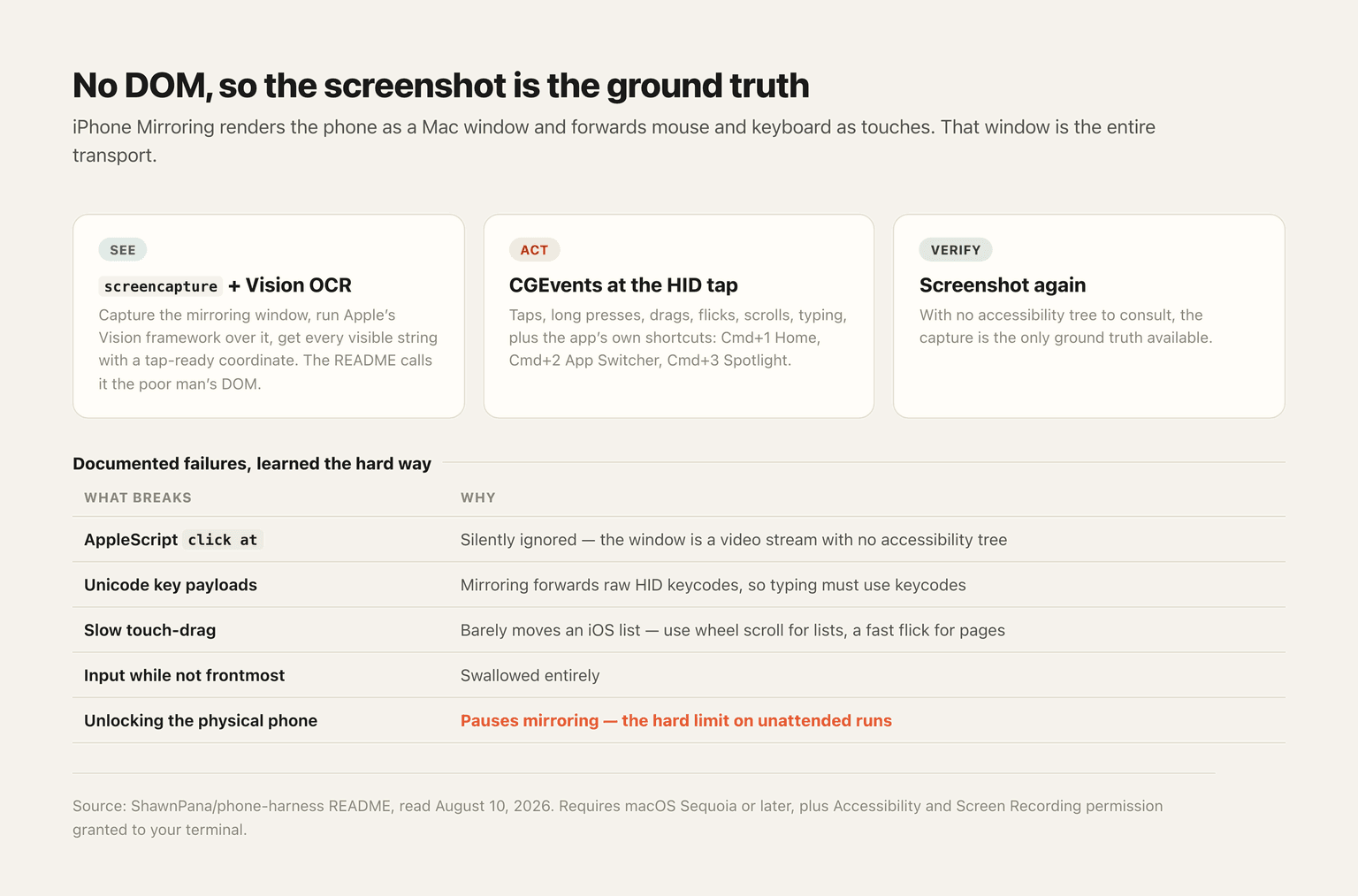
Seeing is screencapture scoped to the mirroring window, then Vision-framework text recognition producing every visible string with a tap-ready coordinate. The README calls this the poor man's DOM, which is exactly right and also the source of most of its limits.
Acting is CGEvents posted at the HID level: taps, long presses, drags, flicks, scroll gestures, typing, and the mirroring app's own shortcuts (Cmd+1 for Home, Cmd+2 for the App Switcher, Cmd+3 for Spotlight). iPhone Mirroring translates those into touches on the actual device.
Verifying is another screenshot, and with no DOM to consult, the capture is the ground truth. There's nothing else to ask.
The transport holds no state. Window bounds and captures get re-queried per call, so there's no daemon and every invocation stands alone. Usage looks like piping Python into the CLI:
./phone-harness <<'PY'
open_app("Notes")
tap_text("New Note")
type_text("hello from the harness")
PY
The failure list is the most useful part of the README
Most projects document what works. This one documents what silently doesn't, which saved me guessing and is worth reproducing.
AppleScript click at is ignored outright, because the mirroring window is a video stream with no accessibility tree behind it. Unicode key payloads don't work either; mirroring forwards raw HID keycodes, so typing has to go through keycodes. A slow touch-drag barely moves an iOS list, so lists want wheel scroll and pages want a fast flick. And any input sent while the window isn't frontmost gets swallowed.
Read that list and the architecture explains itself. Every one of those failures comes from the same root: the mirroring window is a video feed, not an app you can introspect. You're automating a screen, not an interface.
The declared limits follow the same logic, and they stack up quickly: one phone and one session at a time, no multi-touch so no pinch, nothing involving the camera or Face ID, and DRM-protected video that captures as black. Unlocking the physical phone pauses mirroring altogether, which quietly kills the "leave it running overnight" idea before you've had it.
Permissions, and what you're actually granting
This is where AI agent phone control stops being a neat demo and starts being a decision.
Accessibility permission lets a process synthesise taps and keystrokes system-wide. Screen Recording lets it capture what's on screen. You grant both to your terminal, which means you grant them to everything your terminal runs, today and for as long as the grant stands. Not to a sandboxed helper with a narrow entitlement. To the shell.
Now add the phone. Once mirroring is paired and unlocked, the agent reaches whatever the phone reaches: messages, banking apps, authenticator codes, email, photos. There is no permission layer between "the agent can tap" and "the agent can tap on your bank", because iPhone Mirroring doesn't have one. The trust boundary is the mirroring window, and it either includes your entire phone or it doesn't exist.
That's not a criticism of the design, which is honest about being a thin harness. It's a description of the risk you accept, and it's the same class of question we work through in the AI agent security framework and in the argument for running agents in a sandbox. The difference is that a sandbox is available for code and isn't available for your phone.
Practical mitigations are thin but real: watch the mirroring window while it runs, which the setup prompt actually tells the agent to keep visible; keep a second device for anything sensitive; and don't hand it a prompt sourced from a webpage, an email or anything else an attacker could have written.
Where a phone harness fits, and where it doesn't
Some things only exist on a phone. An app with no web version, no public API and no export, holding data you need weekly, is the honest use case, and screen automation has been the answer to that problem since long before agents.
The setup prompt in the README is itself instructive: you paste it into Claude Code or Codex, and it clones the repo, installs the command, registers phone-harness as an agent skill, and walks you through the two steps only a human can do. The agent installs its own hands. That's the pattern most of these agent harness projects are converging on.
What it isn't is infrastructure. One session, one phone, paused by an unlock, dependent on a Mac being awake with a window frontmost, and blind to anything without visible text. Anything you'd want running unattended and reliably wants an API, and where an API exists you should use it. The tool that gets your attention is the one for tasks where no API exists at all.
The agent writes its own helpers, which is the clever bit
Buried in the architecture notes is a design choice worth more attention than the OCR.
The core, src/phone_harness/, is protected: window discovery and capture in mirror.py, Vision text recognition in ocr.py, the primitives in helpers.py, the doctor in admin.py, the CLI in run.py. Roughly 500 lines, and the agent doesn't touch them.
Next to it sits agent-workspace/agent_helpers.py, which the agent does edit, during execution, whenever it needs a primitive that doesn't exist yet. That file auto-loads into the namespace of every script that runs afterwards. So the first time an agent works out how to dismiss a particular modal or scroll a stubborn list, it writes the function, and every later run has it.
It's the smallest possible version of a self-improving harness: no memory system, no vector store, no refinement loop, just a Python file the agent is allowed to append to. Whether that stays coherent after fifty edits is a fair question, and the answer is probably "read it occasionally."
The split between protected core and editable workspace is the part other projects should copy. The agent can extend its own capabilities without being able to break the transport it depends on.
What AI agent phone control costs to try
Cheap, if you already have the hardware, and impossible if you don't.
Requirements are a Mac on Sequoia or later, an iPhone you're willing to pair, and a model provider for whatever agent drives it. There's no service to sign up for and no cloud component; the whole thing runs locally, which is a genuine privacy advantage over any hosted phone-automation service.
Time cost is the pairing and permission dance, which the setup prompt hands to the agent to walk you through, ending in ./phone-harness --doctor to verify the chain. The README warns that a fresh machine may prompt for permissions it hasn't documented, and gives you the tell: if --doctor passes but taps do nothing, a macOS prompt is waiting somewhere.
FAQ
What phones does phone-harness support?
iPhones, and only through a Mac. It works by driving the iPhone Mirroring window, which requires macOS Sequoia or later and a one-time pairing done on the physical handset. Android isn't supported, and there's no ADB path.
Does phone-harness need root or a jailbreak?
Neither. That's the design's main selling point: no jailbreak, no Xcode, no WebDriverAgent. What it does need is Accessibility and Screen Recording permission granted to your terminal in System Settings, and Screen Recording only takes effect after the terminal restarts.
Is phone-harness safe to use?
It's as safe as whatever you let drive it, which is a real answer rather than a dodge. Accessibility and Screen Recording are granted to your terminal rather than to a confined app, and a mirrored phone exposes every app on it, including banking and authenticator codes. Treat prompts from untrusted sources as dangerous and keep the mirroring window visible while it runs.
Can it run unattended?
Not reliably. Unlocking the physical phone pauses mirroring, input sent while the window isn't frontmost is dropped, and the Mac has to be awake with the session live. It's built for supervised runs.
What can't it see?
Anything without visible text. OCR returns strings and coordinates, so unlabelled icons need a screenshot passed to a vision-capable model. Multi-touch gestures like pinch aren't available, camera and Face ID flows don't work, and DRM-protected video captures as black.
Continue Reading
More Guide
Orca ADE: Parallel AI Agent Fleet Explained

Is ChatGPT Agent Free? It Starts at Plus $20
Is Manus AI Free? What You Actually Get

Is Genspark Free? The Free Tier Is 1 a Day
Is Skywork AI Free? The 120-Credit Daily Cap
Paperclip AI: An Org Chart for Your Agents
The MoClaw editorial team writes about workflow automation, AI agents, and the tools we build. Default byline for industry overviews, listicles, and collaborative pieces.
Ready to put this into practice?
MoClaw runs browser tasks, research, and schedules automatically. Try it free.
References: ShawnPana/phone-harness on GitHub · phone-harness SKILL.md · phone-harness install guide · Apple: use iPhone Mirroring on Mac · Apple Vision framework