How Lindy AI Memory Works With Files & Skills

How Lindy AI memory works next to files and skills, what belongs in each layer, and how to word a correction so it survives the next scheduled run.
Table of Contents
Lindy AI memory is the persistent context layer that helps a Lindy carry saved preferences, facts, and working rules into later tasks. It is not the same as files, skills, or unlimited context.
Key Takeaways:
- Lindy AI memory is best for durable rules and corrections.
- Lindy memory files should stay short and reviewable.
- Files are better for evidence, records, and changing references.
- Lindy skills are repeatable methods, not another memory folder.
- Editable AI memory still needs cleanup and test runs.
I asked Lindy in Slack to remember a weekly competitor-brief format: product change, pricing signal, and risk note. Then I changed the third section to a follow-up question. The casual correction worked in that thread, but the safer prompt was explicit: "From now on, replace risk note with follow-up question." A fresh channel prompt then returned the updated format. AI teammate memory behaves better when the rule sounds durable.
I'm Vera. I reviewed this from MoClaw's workflow angle, using public Lindy materials and one small Slack memory test rather than a full product audit.
Quick Answer
Lindy AI memory is context that should survive beyond one task. The Lindy memory model separates live context from persistent memories.
Use memory for stable preferences, files for working knowledge, and skills for repeatable methods. Mixing them gets messy.
Memory, Files, and Skills Serve Different Jobs
Memory for Reusable Context
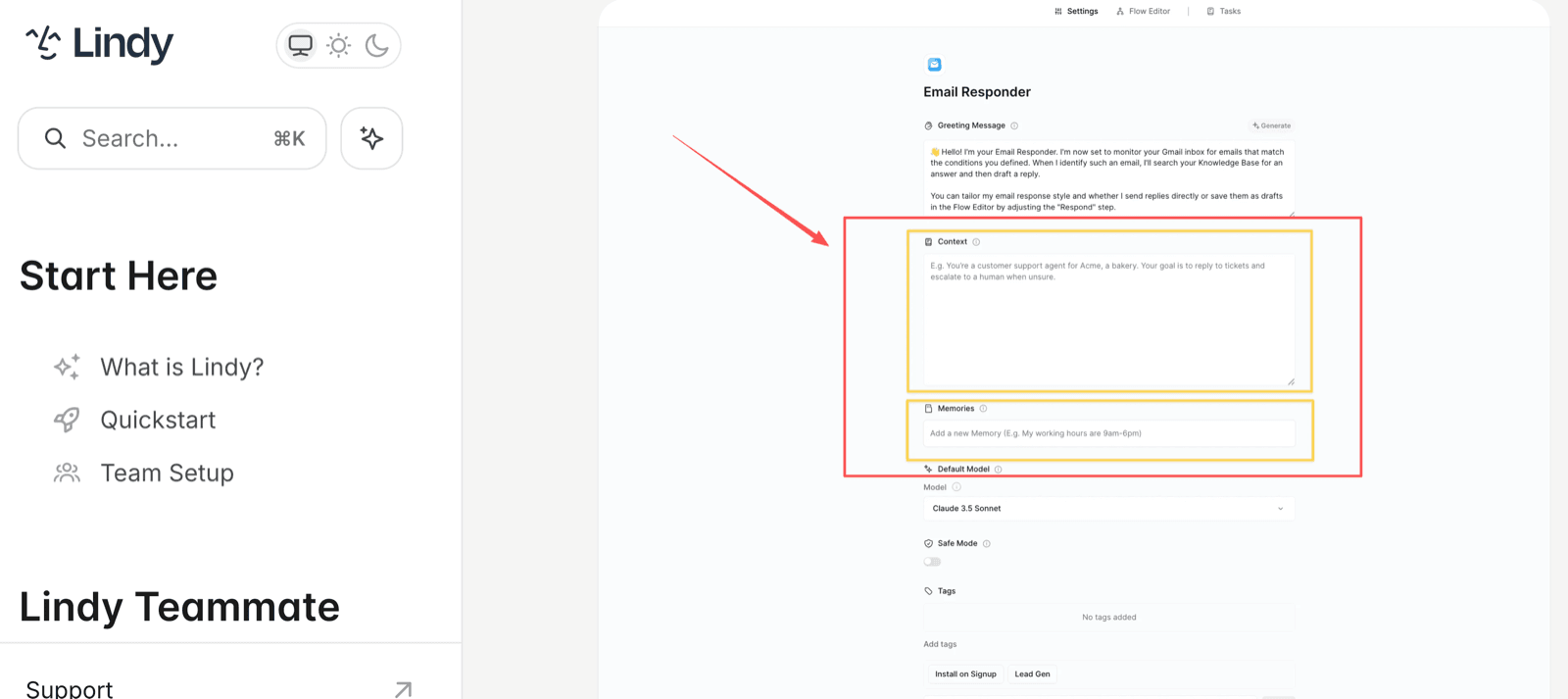
Memory can be used for small pieces of context such as preferences, formats, naming habits, or corrections. Lindy presents memory as plain files users can open and edit.
Good Lindy memory files are plain. "Use three sections for weekly competitor briefs" is memory. A full competitor dossier is not. Lindy's own examples run at that scale too: a timezone, a preferred meeting length, a do-not-contact list. If a rule needs a paragraph to express, it probably belongs somewhere a person can review it properly.
Three routes write to that store, and they are not equally safe. Someone can pre-configure memories while building the agent, a user can add one in conversation, or the agent can create and update memories mid-run on its own. That last route is the one that quietly grows the pile, because nobody signs off on the wording before it starts influencing later tasks.
Files for Working Knowledge
Files are where evidence belongs. Lindy's knowledge base workflow supports files, websites, and cloud storage, including PDF, XLSX, CSV, DOCX, TXT, and HTML.
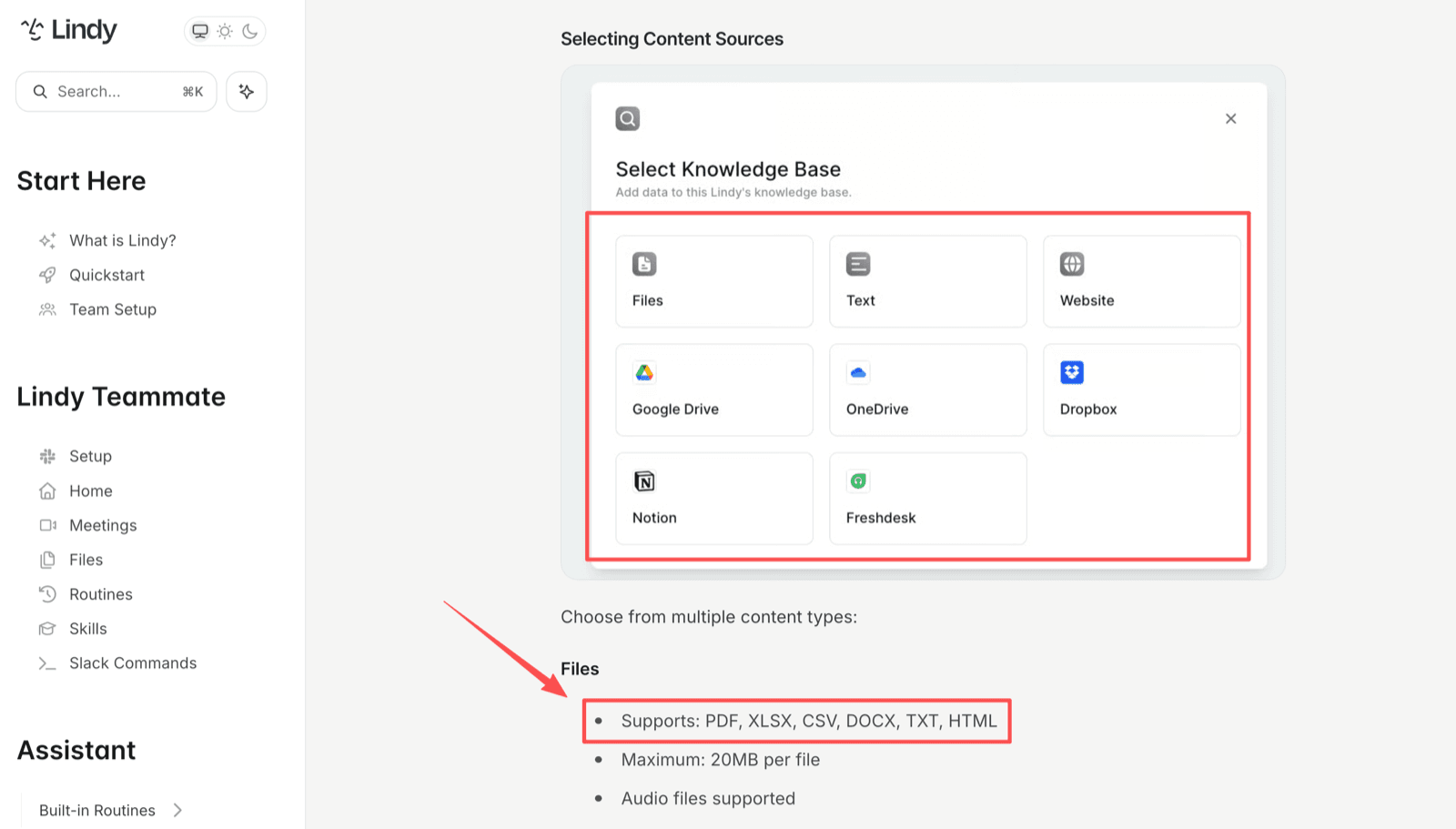
Use files when Lindy needs to read, compare, summarize, or cite source material. A pricing sheet or policy PDF may change, so it needs a reviewable home. Memory can tell Lindy how to use those files, not replace them.
The knowledge base also has settings that decide what "found it" means, and they are easy to skip past. Search fuzziness runs 0 to 100 and defaults to 100, which is pure semantic matching; drop it toward keyword matching and Lindy searches only the first 1,500 files, which is a real ceiling if your team keeps everything. Results default to 4 per query and cap at 10. Individual files max out at 20MB. Content refreshes automatically every 24 hours, so a document edited this morning may not be the document Lindy reads this afternoon unless someone triggers a resync. None of that is exotic, but a memory rule saying "always check the current pricing sheet" is worth exactly as much as the sync schedule behind it.
Skills for Repeatable Methods
Skills are the method layer. Lindy skills give an agent actions such as searching, crawling, analyzing, sending, or calling another workflow, and Lindy's own docs describe a skill as a named playbook for a procedure you repeat. A skill answers "what process should run?" Memory answers "what should this agent remember?"
You can create one by describing the process in chat, or by writing it out on the Skills page, and the description you give it is what Lindy uses to decide when the skill applies. Which means a vague skill description causes the same class of problem as a vague memory: the agent picks the wrong playbook and nothing about the output announces the mistake. MoClaw's AI agent skills guide makes the same distinction. Reusable AI workflows need method and context, but review gets easier when the two are separate.
How Context Is Added and Corrected
Context enters Lindy through the current task, settings, and memory. The current task is the live conversation. Settings shape broader behavior. Memory actions edit durable notes.
Two of those three ride along on every single AI call: the context you set in settings, plus the whole current memory store. Per-task context is the exception, since it builds as the agent works and then resets when the task ends. Knowing which bucket a piece of information landed in tells you whether it will show up tomorrow, and it explains the specific way a stale preference misbehaves, which is that it never announces itself and simply keeps arriving.
For non-technical users, wording matters. "Change the third section" may fix one answer. "From now on, use follow-up question as the third section" is clearer. After any important correction, start a fresh prompt and check whether the change appears.
When the store itself has gone bad rather than one entry being wrong, there is a Delete All Memories action that wipes it. Lindy's guidance points at it for accumulated memories that conflict with each other and have started degrading behavior. It is a reset, not an edit, and you lose the rules that were working alongside the ones that weren't.
A Rough Rule for Where Something Goes
The test I keep coming back to is how the thing fails when it is out of date. If a stale copy would produce a wrong answer that still looks right, it belongs in files, where somebody can open it, check a date, and replace it. Pricing, headcount, policy language, and anything a client might quote back at you all sit on that side of the line.
If a stale copy would produce a slightly annoying answer that a human notices in two seconds, memory is fine. A heading order, a tone preference, a naming convention. The cost of getting one of those wrong is a small edit, not a retraction.
And if the thing you are trying to save is a sequence of steps rather than a fact or a preference, it is a skill, no matter how tempting it is to cram it into a memory line as a run-on instruction.
How Persistent Context Changes Repeat Work
Persistent context helps when work repeats with small variations. Weekly briefs, client updates, and recurring research benefit when the agent remembers the preferred format.
The trade-off is housekeeping. Old memory can conflict with a newer file. A skill can run the right process while memory supplies an outdated preference. MoClaw's agent memory vs chat history article explains why durable memory needs review, not blind trust.
Keep Shared and Personal Knowledge Separate
Shared and personal context should not live in the same pile. A team reporting format is different from one person's writing preference. A client rule is different from a private shortcut.
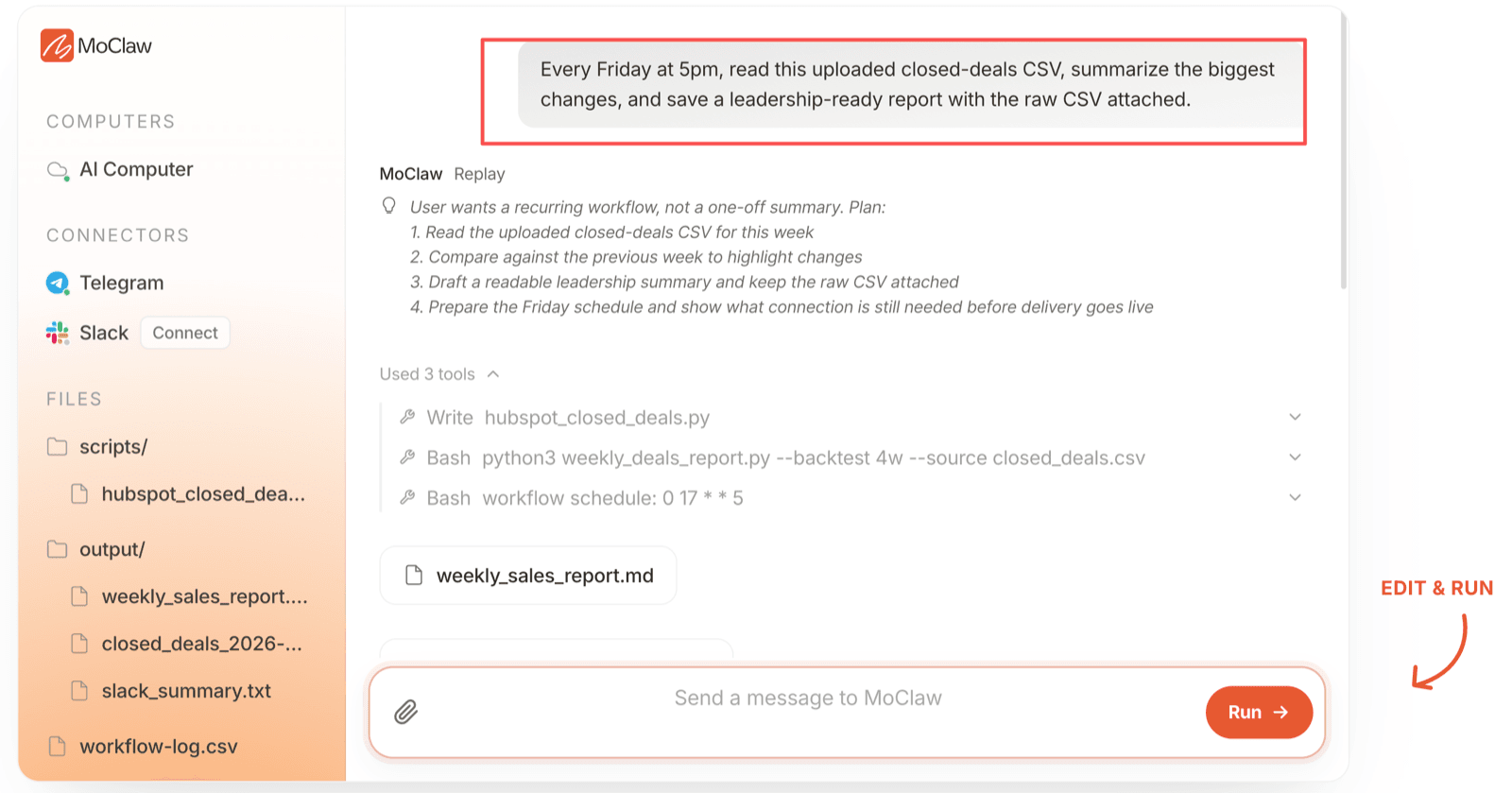
For lean teams, assign each layer a home. Put shared source material in files, personal preferences in memory, and the repeat method inside skills. MoClaw's AI workflow automation page shows recurring work organized around task state and logs.
Limits of Editable Memory
Editable memory is useful because a human can correct it. It is not a guarantee that every later answer will be right. Memory can become stale, duplicated, vague, or contradicted by newer instructions.
There is also a cost angle that gets missed, because it does not look like a memory problem at all. Lindy's docs warn that context accruing inside a long task drives that task's price up, and one of the suggested fixes is to write the important part to memory, clear the rest, and stop treating a single sprawling task as the place where everything lives. Cleanup is a billing habit as much as a tidiness habit.
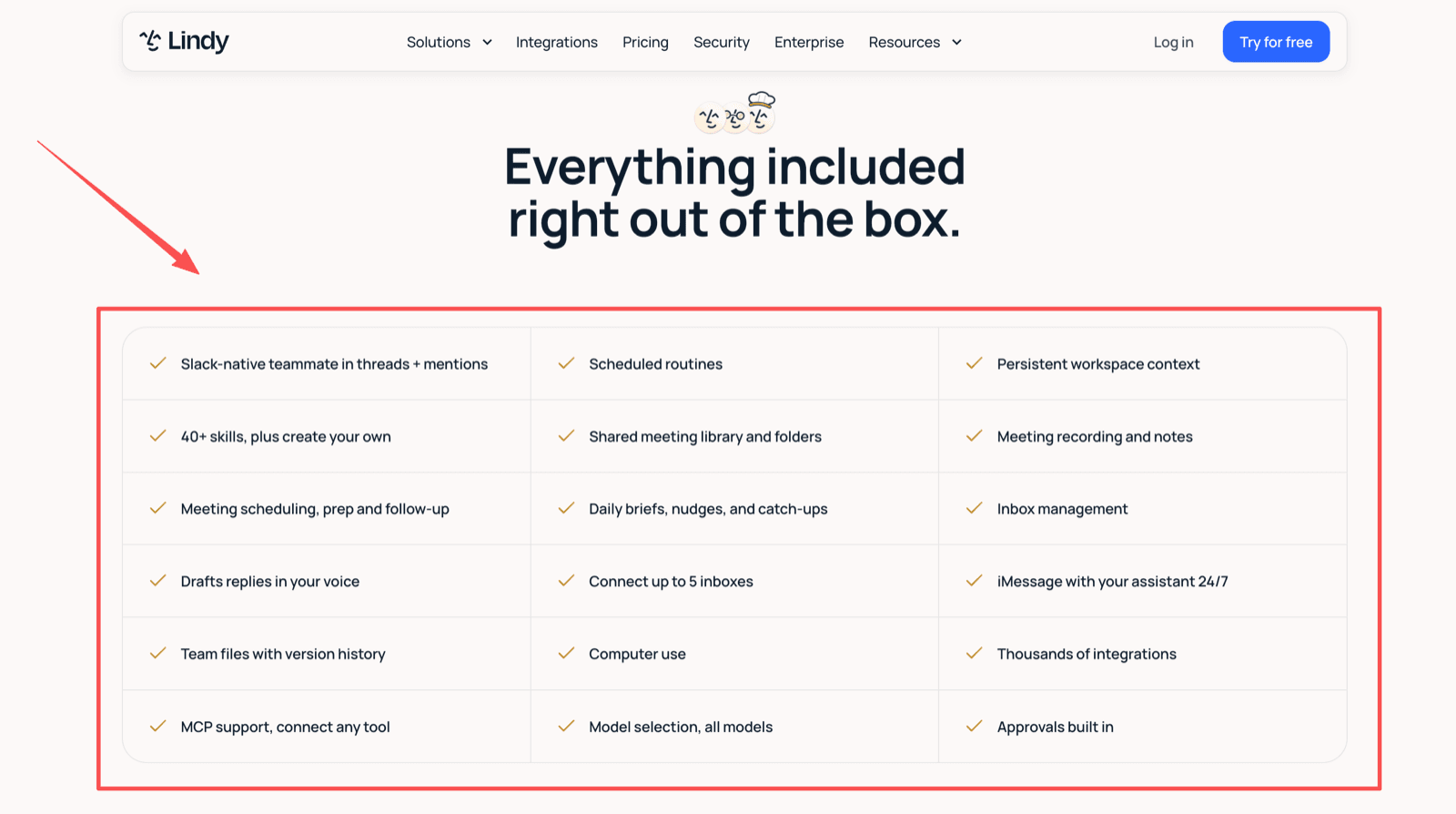
Plan limits matter for the same reason. Lindy's pricing page (lindy.ai/pricing) presents credits, scheduled routines, persistent workspace context, skills, approvals, and model selection, priced per user at $29.99 a month for 3,000 credits on Plus, $99.99 for 15,000 on Pro, and $199.99 for 35,000 on Max. A credit runs around a cent; the docs band everyday asks at 2 to 250 credits, deep work at 250 to 1,000, and big builds up to 2,500. Credits pool across the workspace and do not roll over, and when the pool runs dry Lindy pauses credit-using work rather than billing more, which for a scheduled memory workflow means the run simply does not happen. Somebody should own that check.
FAQ
Can a Lindy skill update memory without direct user approval?
For low-risk preferences, it can be useful. For customer-facing, financial, legal, hiring, or compliance workflows, add approval before durable memory affects future runs.
Does Lindy show which skill wrote a memory entry?
Treat traceability as part of the workflow. Add a task name, date, source link, or note beside important memory changes.
Does renaming a Lindy skill preserve its prior memory references?
Do not rely on display names alone. Use stable workflow names inside memory text, such as "weekly competitor brief workflow."
Does Lindy search memory before opening connected working files?
If source accuracy matters, write the order into the task. Ask Lindy to check the current file first, then apply memory-based preferences.
Are removed Lindy memory statements excluded from scheduled runs?
After removing a memory, run the scheduled task manually once. That catches duplicated rules or old skill instructions.
Make Lindy AI Memory Easier to Trust
Lindy AI memory is valuable when it carries small rules that make repeat work less tedious. Keep memory narrow, files factual, Lindy skills method-focused, and review the first run after any correction.
The habit that separates a memory store worth trusting from one worth wiping is unglamorous: every time you correct a rule, open a fresh prompt and make the agent prove the correction took.
Continue Reading
More Guide
Kimi K2.5 Deprecated: Every Date That Matters

AI Token Consumption: Count It, Then Cut It

AI Document Automation: What Really Needs AI?

AI Business Process Automation, Step by Step

What Is DeepSeek Harness (DSH)?

Qwen 3.8 27B Overthinking: Turn Down xhigh

The MoClaw editorial team writes about workflow automation, AI agents, and the tools we build. Default byline for industry overviews, listicles, and collaborative pieces.
Ready to put this into practice?
MoClaw runs browser tasks, research, and schedules automatically. Try it free.
References: Lindy docs: memory vs context · Lindy docs: Modify Lindy Memory action · Lindy docs: knowledge base sources · Lindy docs: skills · Lindy: editable memory in plain files